Screenshot Settings
The Settings page at OG Images > Settings controls how every screenshot is captured and what each content type emits as its og:image. Settings here apply site-wide.
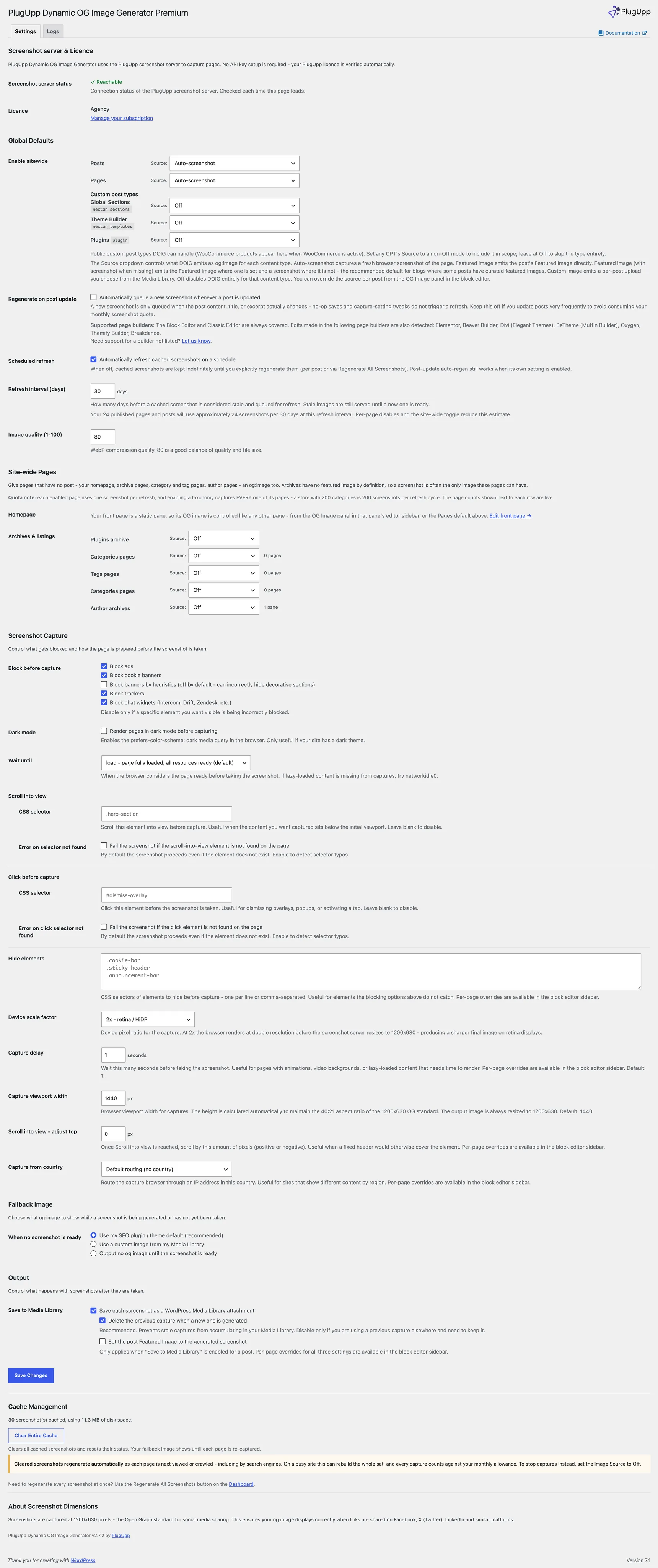
Premium plans can override most of these per-page from the block editor sidebar - see Per-post controls.
Image Source per content type
The first block on the Settings page sets the default Image Source for each content type the plugin recognises. Five options per dropdown:
- Auto-screenshot - the plugin captures a real browser screenshot of each page and uses it as the og:image. This is the original DOIG behaviour and the recommended choice for content types where the on-page design is the differentiator (landing pages, marketing pages, hand-written articles).
- Featured image - emit the post's Featured Image as the og:image directly. Emits nothing when no Featured Image is set. Does not consume your screenshot quota.
- Featured image (with screenshot when missing) - emit the post's Featured Image when one is set, fall back to an auto-screenshot when no Featured Image exists. Screenshots are captured only for posts without a Featured Image. A placeholder image (the WooCommerce placeholder, for instance), a featured image whose attachment has been deleted, and a thumbnail that is not an image file all count as "no Featured Image", so those posts fall back to the screenshot rather than emitting nothing.
- Custom image - the content type emits a single Custom image per post. Each post's Custom image is picked from the block editor sidebar's Media Library picker. Does not consume your screenshot quota.
- Off - DOIG steps out of the og:image chain for this content type. Your SEO plugin's default takes over.
Posts and Pages each have their own dropdown. Premium adds a Custom post types section with one dropdown per public CPT (WooCommerce products appear automatically when WooCommerce is active).
A fresh install starts both Posts and Pages on Off so the plugin does not begin consuming your screenshot quota before you have consciously opted in. Pick the source that fits each content type and click Save.
Only JPEG, PNG, GIF and WebP images are used as share images, because those are the formats social platforms actually display - an image in any other format (an SVG, for example) is treated as though it were not there, so Featured image (with screenshot when missing) falls back to the screenshot and the other modes emit nothing rather than a preview that would come out blank.
Individual posts can override the content-type default from the block editor sidebar - see Per-post controls.
Site-wide Pages
Pages that are not posts - your homepage, archive pages, category and tag pages, and author pages - can carry OG images too. These pages have no featured image by definition, which is exactly where a screenshot shines: the screenshot of the archive IS the page.
Each row in the section offers three choices:
- Screenshot of the page - a real capture, refreshed on your schedule like any post.
- Custom image - one image you choose for the whole group (for taxonomies, every page of that taxonomy shares it).
- Off - the default. Nothing is captured or emitted until you switch a row on.
Homepage is included free. Archive pages, taxonomy pages and author pages are Premium.
Two things worth knowing before you toggle:
- Taxonomies capture every page. Enabling Categories captures each category page - the live page count next to the row shows exactly how many screenshots per refresh cycle that costs. A store with 200 categories is 200 screenshots per cycle; see Capacity planning.
- Static front pages are different. If Settings, Reading is set to a static front page, that page is a normal page - control its OG image from the page's own editor sidebar (the section says so in place of the toggle).
Regenerate on post update
When enabled, saving a published post queues a fresh screenshot, replacing any previous one - but only for posts whose resolved Image Source needs a screenshot (Auto-screenshot, or Featured-with-fallback when no Featured Image is set). Posts on Featured / Custom / Off skip this step regardless of the toggle.
The plugin detects content changes from the Block Editor and Classic Editor automatically. It also watches for content saves from the major page builders: Elementor, Beaver Builder, Divi, BeTheme (Muffin Builder), Oxygen, Themify Builder, and Breakdance. Edits in any of these trigger the same auto-regeneration. If you use a builder not listed here, contact support so we can add it.
Trivial saves (clicking Update with no visible change) do not trigger a regen - the plugin compares the post content, title and excerpt before and after the save and skips no-op edits to avoid burning quota.
Refresh interval
How many days a cached screenshot is considered fresh before being queued for refresh. Default is 30 days, which aligns with most monthly quotas. Stale images continue to be served until the new one is ready, so the swap is seamless.
Minimum is 1 day.
Below the input, the plugin shows a live estimate of how many screenshots your current schedule will use. The estimate is based on your published page and post count and the refresh interval you have entered. Use it to size your refresh interval against your monthly quota.
The refresh interval only applies to Auto-screenshot and Featured-with-fallback sources. Featured / Custom / Off sources read live attachment data each time the page is rendered, so no refresh schedule applies to them.
Screenshot usage
At the top of the Dashboard sub-page, the Screenshot usage section shows your current consumption against your quota.
- You are on the [plan] plan - N of M screenshots remaining this month for paid plans.
- You are on the Free plan - N startup screenshots remaining for this site for the Free tier.
Below the headline are the detailed counts: startup screenshots used, monthly screenshots used (paid plans), the date your monthly quota resets, and the date your subscription renews. The figures come from the PlugUpp screenshot server live, so they always match reality - there is no local cache that can drift.
The startup allowance is one-time per site. The monthly allowance is shared across every site activated under your licence and resets on your subscription anniversary day each month.
Image quality
WebP compression level, 1-100. Default is 80, which produces a small file with no visible quality loss for the typical social-media preview use case. Lower values produce smaller files at the cost of visible artefacts; higher values produce larger files with diminishing return.
Browser viewport
The dimensions of the browser used to capture the page.
- Free tier: fixed at 1440 pixels wide. The height is proportional to the standard Open Graph 1200x630 output, so the captured area is what gets used.
- Premium tier: configurable width from 1200 to 3840 pixels. Height is always computed proportionally. A wider viewport captures more page content per row, which can be useful for desktop-styled layouts. A narrower viewport captures the mobile-styled rendering of responsive sites.
Regardless of viewport width, the final og:image output is always resized to 1200x630, which is the standard Open Graph image size recognised by Facebook, X, LinkedIn, and other social platforms.
Capture delay (Premium)
Number of seconds to wait after the page loads before taking the screenshot. Useful for pages with animations, lazy-loaded images, or content that fades in on scroll. Default is 1 second; maximum 30 seconds.
Capture delay runs on the PlugUpp screenshot server, not on your WordPress server, so long delays do not affect your hosting environment's per-request budget. Use the minimum that gives reliable results to keep your captures fast.
Wait until
Which page-load event the browser waits for before considering the page ready.
- load (default) - waits for the standard page load event. Suitable for most sites.
- domcontentloaded - waits only for the initial HTML parse to finish. Faster but may capture before images render.
- networkidle0 - waits until the network has been completely idle for 500ms. Most thorough but slower; useful for pages with delayed XHR content.
- networkidle2 - waits until there are no more than two network connections for at least 500ms. A middle ground between load and networkidle0.
Leave at load unless you have a specific reason to change it.
Dark mode
When enabled, the browser hints to the page that the user prefers a dark colour scheme (the same hint your real visitors send if they have dark mode on in their OS or browser). Sites that respect this hint will render in their dark theme.
This is a single switch site-wide. Premium plans can override it per page if you want individual pages captured in light or dark mode regardless of the global setting.
Device scale factor (Premium)
The device pixel ratio used for capture. 1 is standard, 2 is "retina" (HiDPI), 3 is triple density.
Higher values produce sharper screenshots on high-DPI displays but make the captured image larger. Most sites are fine at 1; bump to 2 if your og:images appear soft on retina-grade displays.
Blocking options
The plugin can hide common page elements before capture so they do not appear in the og:image preview. Available on all tiers.
- Block ads - hides ad units served by common ad networks.
- Block cookie banners - hides cookie consent and tracking-notice overlays.
- Block trackers - prevents analytics and tracking scripts from loading.
- Block chat widgets - hides live chat bubbles from Intercom, Drift, Zendesk, and similar services.
- Block banners by heuristics - off by default. When enabled, the capture engine uses heuristics to hide elements that look like banners. Powerful but can occasionally hide decorative content you wanted in the shot.
Hide elements (Premium)
A comma-separated or one-per-line list of CSS selectors. Any element matching one of these selectors is hidden before capture. Useful for hiding parts of a page that are not covered by the standard blocking options - a newsletter signup bar, an in-page promotion, a specific header element.
Example:
.newsletter-popup
#cookie-bar
.promo-strip
Available globally on Premium plans, with per-page overrides also Premium. Free plans cover the common cases via the standard Blocking options above.
Scroll into view / Click before capture
Two related options for sites where the captured content needs a small interaction before it renders correctly.
- Scroll into view - a CSS selector pointing at an element to scroll into the viewport before capture. Useful when the content you want sits below the initial visible area.
- Click before capture - a CSS selector pointing at an element to click before capture. Useful for dismissing modal overlays, activating a tab, or expanding a collapsed section.
Site-wide free. Per-page overrides are Premium.
There are also two related toggles that affect what happens if the named element is missing on a given page:
- Error on selector not found - off by default. When on, the capture fails if the scroll-into-view selector does not match anything. Useful when the selector is genuinely required.
- Error on click selector not found - off by default. When on, the capture fails if the click selector does not match anything.
Leave both off in normal use - it is usually preferable to capture without the click than to fail outright.
Country-based capture routing (Premium)
By default, the screenshot server captures pages from its own datacentre, which is typically in the European Union. Geo-aware pages (different content for different countries, region-restricted access, geo-fenced banners) will render the EU-region version.
Country routing lets you specify a different country to capture from. The capture is routed through an IP in that country, so the page sees the visitor as being there. Choose from the list of supported countries (the dropdown shows them).
Useful for testing how your pages appear to specific markets, or when capturing region-locked content.
What if no image is available for a post?
Each Image Source mode handles the "nothing to emit" case differently:
- Auto-screenshot, screenshot still pending - your SEO plugin's default takes over until the screenshot lands. If you have no SEO plugin, no og:image tag is emitted for that brief window.
- Featured image, no Featured Image set - no og:image tag is emitted from DOIG. Your SEO plugin's default applies if one is configured.
- Featured image with screenshot fallback, no Featured Image set - the plugin queues a screenshot, behaves like Auto-screenshot mode for that post.
- Custom image, no Custom image picked yet - no og:image tag is emitted from DOIG. Your SEO plugin's default applies if one is configured.
- Off - DOIG always steps aside on this post; your SEO plugin's default applies.
See SEO plugin compatibility for how the plugin coexists with your existing SEO setup.