Per-Post Controls
Every published post and page gets an OG Image panel in the block editor sidebar (Gutenberg). The panel shows the current resolved image for that post and lets you override the content-type defaults for this specific page.
To open the panel, edit any post and look for the right-hand sidebar. If you do not see the panel, click the icon shown below in the top right of the editor to open the sidebar, then click OG Image in the sidebar to expand the panel.
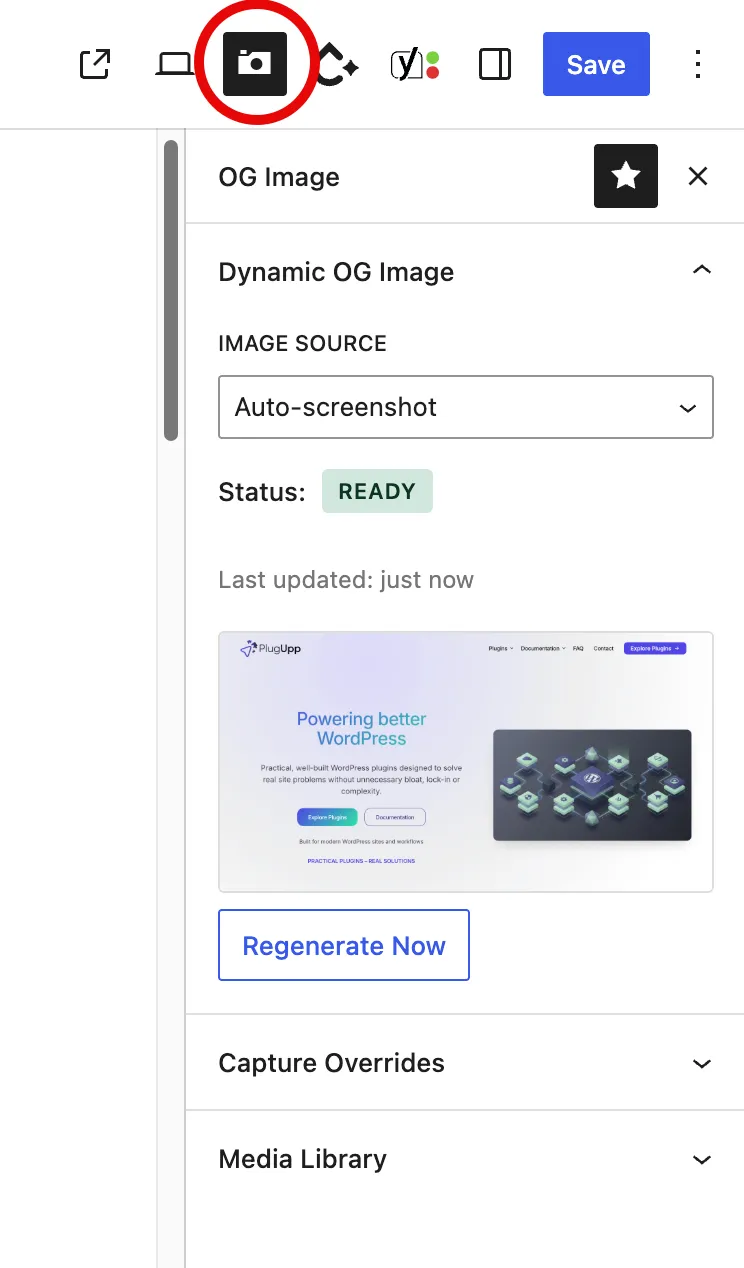
Image source
The top control is the Image source dropdown. Six options:
- Inherit content-type default - this post follows whichever default is set for its content type at OG Images > Settings. New posts use this. The current resolved mode is shown in the help text below ("Currently inheriting: Auto-screenshot", and so on) so you can see what the content type is set to without leaving the editor.
- Auto-screenshot - the plugin captures a real browser screenshot of this page and uses it as the og:image. Consumes screenshot quota.
- Featured image - emit this post's Featured Image as the og:image. Emits nothing when no Featured Image is set. Does not consume quota.
- Featured image (with screenshot when missing) - emit the post's Featured Image when one is set, fall back to an auto-screenshot when it is not. Quota is consumed only when no Featured Image exists.
- Custom image - emit a single Custom image picked from the Media Library. Does not consume quota.
- Off - DOIG steps out of the og:image chain on this post. Your SEO plugin's default takes over.
Changing the dropdown writes a per-post override that supersedes the content-type default. To go back to following the content-type default, pick Inherit content-type default again.
Custom image picker
When the Image source is set to Custom image, a Media Library button appears below the dropdown. Click it to pick an attachment.
The picker pre-selects the existing Custom image (if you've already picked one for this post), so you can swap images without having to re-find the current selection in the library.
Below the picker, the panel shows the chosen attachment's filename. Click the picker again at any time to swap it for a different image. Removing the choice and saving the post reverts to "no Custom image picked" - DOIG will emit nothing on this post until you either pick a new Custom image or change the Image source.
Below-200x200 warning
If the resolved Featured image or Custom image is below the Open Graph minimum dimensions of 200x200, the sidebar shows a soft warning inline. This is the floor where major social platforms (Facebook in particular) start skipping thumbnails entirely.
The plugin does not block the emission - the small image is still emitted as og:image if you want it. The warning just surfaces the issue so it doesn't catch you by surprise when a share preview shows up blank.
Multi-source preview
Below the Image source control, the panel shows a thumbnail of what will actually emit for this post given the current resolved source:
- Auto-screenshot, Ready - the captured WebP.
- Featured image - the Featured Image attachment.
- Featured-with-fallback - the Featured Image when one is set, otherwise the captured screenshot.
- Custom image - the chosen Custom image.
- Off - no thumbnail (the panel collapses to a status line).
The preview updates live as you change the dropdown, so you can see what each Image source would emit before committing.
Status
Below the preview, a status badge shows the current state of this post's capture (only relevant for Auto-screenshot and Featured-with-fallback sources):
- Pending - a job has been submitted to the screenshot server and is waiting for the result. Most pending states resolve within a few minutes; on low-traffic sites it can take longer.
- Ready - a screenshot has been captured and is being served as this post's og:image.
- Failed - the most recent capture attempt did not succeed. Click Regenerate Now to retry; if it keeps failing, check the plugin log for details.
- Quota exceeded - the capture could not run because your screenshot quota is exhausted. The post will be re-queued automatically when your quota resets at the start of your next billing period.
- No screenshot yet - no capture has been attempted. Either this post is new, or its Image source does not need a screenshot.
Regenerate Now
Click to force a fresh screenshot. This bypasses the refresh interval and any pending status, queuing an immediate capture. The status changes to Pending and the new thumbnail appears once the capture completes.
The button is disabled when:
- The post's resolved Image source does not need a screenshot (Featured / Custom / Off, or Featured-with-fallback when a Featured Image is already set). A short help line below the button confirms which case applies and how to re-enable it (set Image source to Auto-screenshot).
- You have changed the Image source but not yet saved the post.
- The plugin has not been activated yet (waiting on first-time setup).
- Your WordPress Site Address is
http://rather thanhttps://(the screenshot service requires HTTPS). - A regeneration is already in flight.
Clear cached screenshot
Below Regenerate Now sits a red Clear cached screenshot link. It deletes this post's cached image and resets the status to "Not yet taken". It asks for confirmation before deleting, and it is disabled when there is nothing cached to clear.
Clearing is not a hold. Nothing is queued at the moment you click, but the page is re-captured automatically the next time it is viewed - and that capture uses quota. A view by a visitor, a search engine or a site scanner is enough, and the capture starts within seconds of that view. If nothing views the page first, your next content update or the scheduled refresh picks it up instead, whichever comes first. Until a fresh capture lands, your fallback image behaviour applies.
Use it when a capture is outdated or wrong and you would rather serve your fallback than the stale image while a new one is taken. To stop this post being captured at all, change the Image source to Featured image, Custom image or Off - clearing the cache changes what the plugin currently has, not what it captures.
This is different from Regenerate Now (which clears and immediately re-captures) and from resetting the Image source (which changes what the plugin emits, not what is cached).
Per-post capture overrides (Premium)
Premium plans add a section to the sidebar with per-post versions of the global capture options. Each override defaults to "inherit from content-type default"; change it on a per-post basis when one page needs different treatment.
The overrides available match the global settings in Screenshot Settings, plus a per-post capture target:
- Capture URL - capture a different https page for this post's og:image instead of the post's own page - even a page on another domain. The classic case is a portfolio or case-study post: the page worth showing on social media is the client site the post describes, not the post itself. Leave blank to capture this post as normal. URLs on a different domain than your site require an active paid licence at capture time; the URL must start with
https://. - Viewport width - set a specific width for this page's capture (e.g. capture a particular page at mobile width).
- Capture delay - add a longer wait for pages with heavy animations.
- Dark mode - force light or dark capture for this page regardless of the global setting.
- Hide elements - additional CSS selectors to hide on this page only.
- Scroll into view - scroll a specific element into view before capturing this page.
- Scroll adjustment - tweak the scroll position by N pixels after the scroll-into-view.
- Click before capture - click a specific element before capturing (e.g. expand a particular tab on this page).
- Capture from country - route this page's capture through an IP in a specific country, regardless of the global routing setting. Set to "No country routing" to opt this page out of routing that is enabled globally.
Set any override to "Inherit from settings" to fall back to the site-wide value. The per-post capture overrides only apply when the resolved Image source is Auto-screenshot or Featured-with-fallback (when no Featured Image is set) - they have no effect on Featured / Custom / Off sources because no screenshot is being captured.
Media Library overrides (Premium)
Also on Premium, the sidebar includes a small Media Library section per post.
- Save to Media Library - when ticked, each capture for this post is saved as a Media Library attachment (in addition to the local cache used for og:image). Useful for pages whose screenshots you want to reuse elsewhere on the site.
- Delete previous capture - when ticked, the previous Media Library attachment for this post is deleted whenever a new capture replaces it. Keeps the library clean.
- Set as Featured Image - when ticked, the captured screenshot is set as this post's Featured Image automatically. Useful for archive pages and themes that surface featured images in listings.
These can also be set as defaults at the site level - see OG Images > Settings. The per-post overrides are most useful when you want most posts to follow one rule and a small subset to follow another.
The Media Library overrides only apply when the resolved Image source is Auto-screenshot or Featured-with-fallback - they require a screenshot to operate on.