Troubleshooting
Screenshot is stuck on Pending
A capture is normally submitted within seconds and the image lands a minute or two later. If the submission itself cannot start straight away - some hosts block the plugin's own request to itself - it falls back to your site's scheduler, which on a low-traffic site only runs when someone visits. Wait a few minutes and check again, or click Regenerate Now in the block editor sidebar to force another attempt.
If the status stays Pending for longer than that, see "A capture has been Pending for a long time" below - the plugin re-submits interrupted captures by itself, so there is a point at which waiting is the right answer and a point at which it is not.
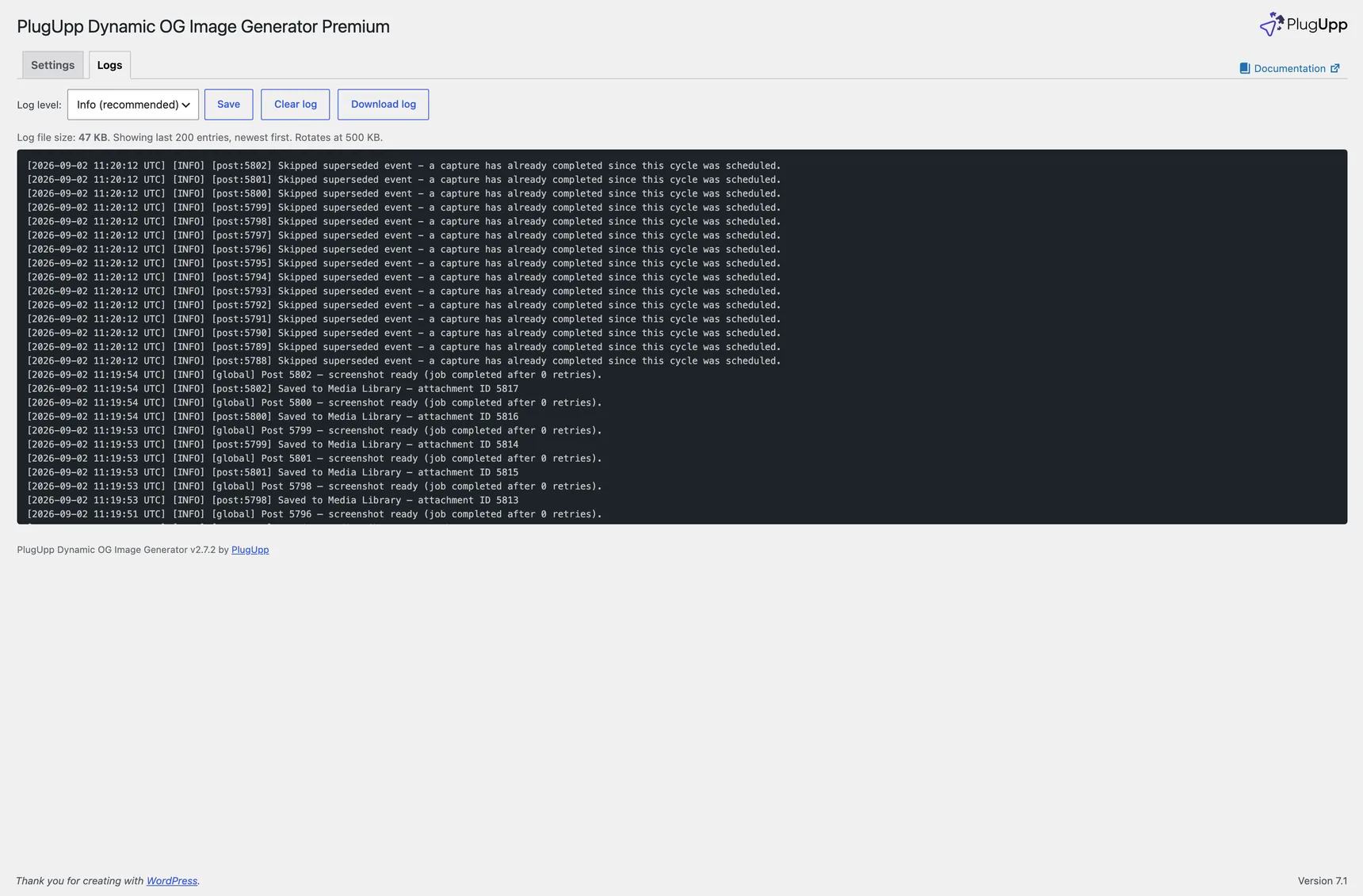
A capture has been Pending for a long time
Most captures resolve within a minute or two. One that is still Pending after that is usually a capture the plugin already knows about and will pick up by itself.
Every five minutes the plugin reviews its pending captures. Anything that was interrupted - a background run cut short by the host, or the plugin switched between builds mid-capture - is spotted by that pass and submitted again, usually within about ten minutes of getting stuck. You do not need to do anything, and it does not cost you two captures: a duplicate submission for a post whose capture is still in flight is skipped, and a capture that has already completed since it was queued is not run again.
Start looking into it if a capture is still Pending after 30 minutes. That means the five-minute pass is not running, which almost always means WP-Cron is not running on the site (see "Logs show no activity" below - ask your host whether WP-Cron or its server-side replacement is working). Check OG Images > Settings > Logs for errors at the same time. Regenerate Now in the sidebar forces a fresh attempt in the meantime.
Screenshot shows Failed
Open the plugin log for details on the specific error. Common causes:
- licence_inactive - your PlugUpp licence has expired or been deactivated. Check your account at plugupp.com.
- proxy_unavailable - the PlugUpp screenshot service was temporarily unreachable. The plugin will retry automatically. If the problem persists, check status.plugupp.com.
- Quota exceeded - your monthly screenshot allowance is exhausted. The post will be re-queued automatically when your quota resets on your next billing date. Existing screenshots continue to be served normally in the meantime. If you are running out of quota regularly, see Capacity planning for the levers you can pull to bring usage back in line, including switching some content to Featured-image or Off sources (which do not burn quota).
Regenerate Now button is greyed out
The button is disabled when:
- The post's resolved Image source is not Auto-screenshot (and not Featured-image-with-fallback-where-no-Featured-Image-is-set). Featured / Custom / Off / FwF-with-FI all use an existing image rather than capturing a new one, so there is no screenshot to regenerate. The help text below the button confirms which case applies. Change the Image source in the sidebar to Auto-screenshot to re-enable the button.
- You have just changed the Image source but not yet saved the post. Save the post and the button activates.
- The plugin has not yet been activated (no PlugUpp connection).
- Your WordPress Site Address is
http://rather thanhttps://(the screenshot service requires HTTPS).
My site address starts with http:// - the plugin will not capture
The PlugUpp screenshot service only captures pages from https:// URLs. If your WordPress Site Address (Settings -> General) is configured as http://..., the plugin's pre-flight check blocks Regenerate Now, Regenerate All, and the daily refresh with an actionable message rather than silently failing every capture.
To fix: switch your site to HTTPS via your hosting provider, then update Site Address to https://... under Settings -> General. Most managed hosts provide a free SSL certificate via Let's Encrypt; check your hosting documentation for the exact steps.
OG image is not appearing in page source
- Confirm the post status shows Ready in the block editor sidebar (for Auto-screenshot or FwF sources), or that a Featured Image / Custom image is set (for Featured / Custom sources).
- Check the Image Source for this post in the sidebar. If it is Off, the plugin is intentionally not emitting an og:image for this page.
- Check that caching plugins or a CDN are not serving a stale version of your page.
- If you have a security plugin, confirm it is not blocking REST API requests to
/wp-json/doig/v1/.
Screenshots look wrong or outdated
Click Regenerate Now in the block editor sidebar to queue a fresh capture. If screenshots are consistently outdated across the site, check the refresh interval setting in OG Images > Settings.
The Regenerate All button ran but nothing changed
Check first that the run was confirmed. Clicking Regenerate All Screenshots does not queue anything on its own: it opens a confirm step showing how many screenshots the run would queue, and the work starts only when you click Yes, queue them now. If that step was cancelled or the page was left before it was answered, nothing was queued.
If it was confirmed, the captures are submitted in the background and may take some time on sites with many posts. Check the plugin log to confirm jobs are being processed. Posts whose Image Source is Featured / Custom / Off are intentionally skipped (no screenshot needed); the log line for the run reports how many were queued versus how many were skipped.
Logs show no activity
WP-Cron may not be running. This is common on sites with very low traffic, or sites that have disabled WP-Cron without setting up a server-side cron job as a replacement. Contact your hosting provider or refer to the WordPress documentation on configuring WP-Cron.
Approaching your monthly quota
If your site has hundreds or thousands of pages - large WooCommerce stores, property listing sites, programmatic-SEO content - the monthly screenshot allowance can be exhausted long before all pages are covered. The arithmetic is fixed (pages x (30 / refresh_interval) = monthly screenshots needed); the answer is to be selective about which pages get captured.
Capacity planning walks through the four levers (setting Image Source to Featured / Off for high-volume content types, extending the refresh interval, per-post overrides, and bulk Image Source actions) and covers the four common scenarios where this comes up.
"Your site returned HTTP 403 (or another error) to the screenshot service"
The screenshot service will only capture a page that responds successfully. If your site answers it with an error status, the capture fails and the Dashboard shows the status your site returned.
By far the most common cause is that something on your site is blocking the screenshot service as if it were a bot. Usual suspects:
- A security plugin (Wordfence, Sucuri, iThemes Security) with bot or user-agent filtering enabled.
- A CDN or WAF (Cloudflare, Sucuri) with a firewall rule, "Under Attack" mode, or bot-fight mode turned on.
- Server-level rules that reject non-browser user agents, or rate limiting that trips on repeated requests.
- Hosting-level protection on the page (a password, a staging lock, or an IP allowlist).
"But the page loads fine in my browser"
That is the usual and expected report, and it does not mean the error is wrong. Two things make the screenshot service's request different from yours:
- It always bypasses your cache. Each capture requests a unique URL, so the request cannot be served from your CDN or page cache and goes straight to your origin server - which is exactly where firewall and bot rules live. Your own browsing is usually answered from cache, so it never reaches those rules.
- It comes from a data centre. Some bot protection blocks data-centre IP ranges on reputation, whatever the request looks like.
Reproduce it in ten seconds. Visit your own homepage with any unused query string on the end, for example https://yoursite.com/?test=12345, using a fresh value each time. If the plain URL loads but that one returns an error, you have confirmed it: your page is healthy and something at the origin is filtering uncached requests. That is the single most useful thing to send your host or put in a support ticket.
Fix: allowlist the screenshot service in whichever layer is doing the blocking, then use Regenerate Now to retry. Work outside-in, because the outermost layer wins: your CDN or WAF first (Cloudflare, Sucuri, or a host-provided CDN), then your security plugin, then any server-level rules. If your host manages the firewall for you, quote the reproduction above and ask them to allow uncached requests to your public pages.
Other error statuses point elsewhere: 401 or 403 with a login prompt usually means the page is not public; 503 often means maintenance mode is on; 500 means the page itself is erroring and should be fixed first.
"Recent screenshots completed via the slower polling fallback"
Normally the screenshot service pushes each finished image to your site instantly through a callback to /wp-json/doig/v1/. When that callback cannot get through - a firewall, security plugin, or host rule blocking incoming REST requests is the usual cause - the plugin falls back to checking for finished screenshots on a 5-minute schedule instead. Everything still works; captures just take up to five minutes longer to appear.
If you see this note on the Dashboard and want the instant behaviour back, allow POST requests to /wp-json/doig/v1/callback in whichever layer is blocking them - typically a security plugin's REST API restrictions or a host-level firewall rule. The note clears itself a week after the last slow capture.
"Your site does not appear to have a favicon" on the Dashboard
Once a week the plugin checks whether your site serves a favicon - either a WordPress Site Icon, a /favicon.ico file, or a favicon link tag in your home page. If none is found, a note appears on the OG Images Dashboard.
Why the plugin cares: chat platforms such as Slack, Discord and WhatsApp render a small site icon next to the link preview. Without a favicon they show a broken globe instead, which makes an otherwise-good OG image look incomplete.
The note is informational only - screenshots are never blocked or delayed by a missing favicon. To fix it, add a Site Icon under Appearance > Customize > Site Identity (WordPress recommends a square image at least 512x512). The note clears automatically on the next weekly check, or you can dismiss it; if a later check still finds no favicon, it reappears.