Reviewing your results
After a scan, every finding appears in two views. Each is built from your pages' real rendered output - the links and images that actually shipped to visitors, not a list read out of your database.
The two views
- By URL - every unique link, image and resource found across your site, each with a single verdict and a count of how many pages use it. This is the fastest way to fix a broken link once and clear it everywhere it appears.
- By page - every scanned page, with its own Issues, Warnings and Notices counts. This is the way to work page by page, or to find the pages in the worst shape.
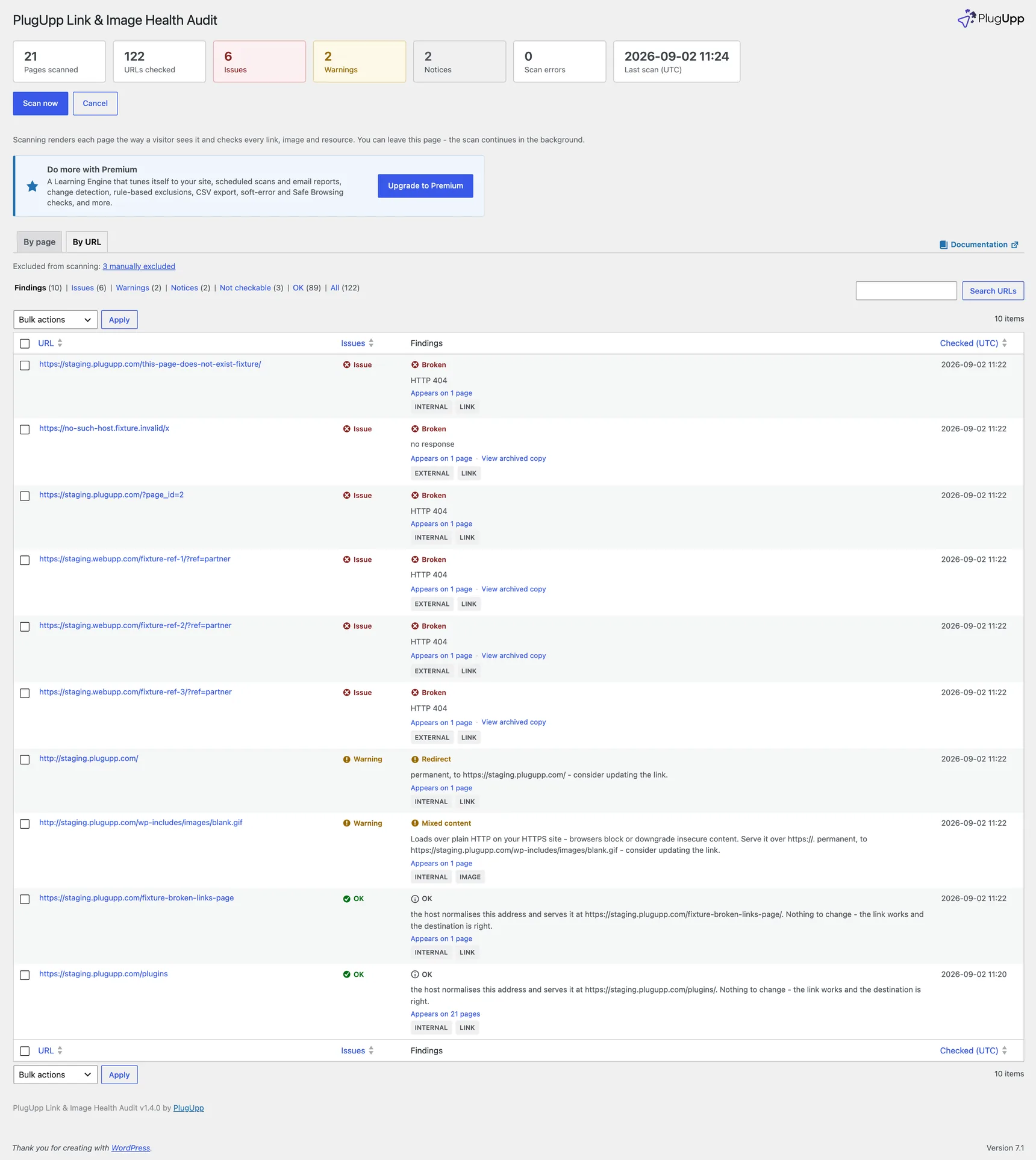
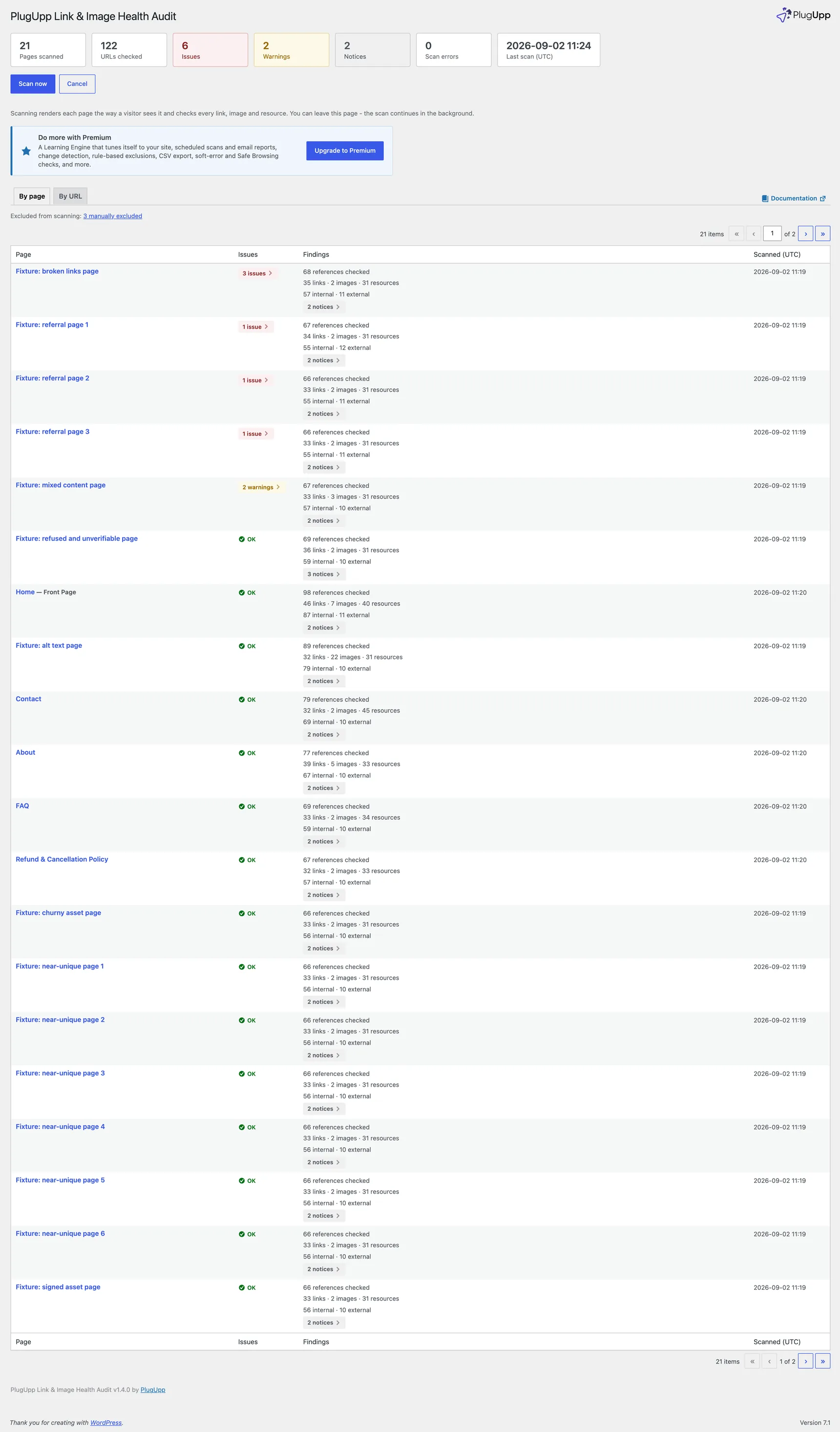
A summary across the top of both views shows how many URLs were checked, the Issues, Warnings and Notices totals, and the last scan time. Both views are sorted worst-first by default; you can still sort by any column.
The verdicts
Findings are split by severity, so advisory items are never counted as problems:
- Issues (critical) - a broken link or image: a 404 or other error, a host that cannot be reached, or (on Premium) a destination flagged as a soft error or by Safe Browsing.
- Warnings - worth fixing but not broken: an SSL or certificate problem, a permanent redirect (the link still works but points at an old address), or mixed content (an image, embed or page resource loading over plain HTTP on your HTTPS site).
- Notices - advisory: a temporary redirect, or a host normalising its own
address. Some sites add or remove a trailing slash on every link, so
/in/someone/is served at/in/someone. That is a real redirect and we say so, but there is nothing to change and it never counts as a warning. - Not checkable - the destination refused our automated request, so the audit holds no opinion about the link. Counted on its own rather than as an issue, because there is nothing here to fix. See below.
- OK - the link or image resolved cleanly.
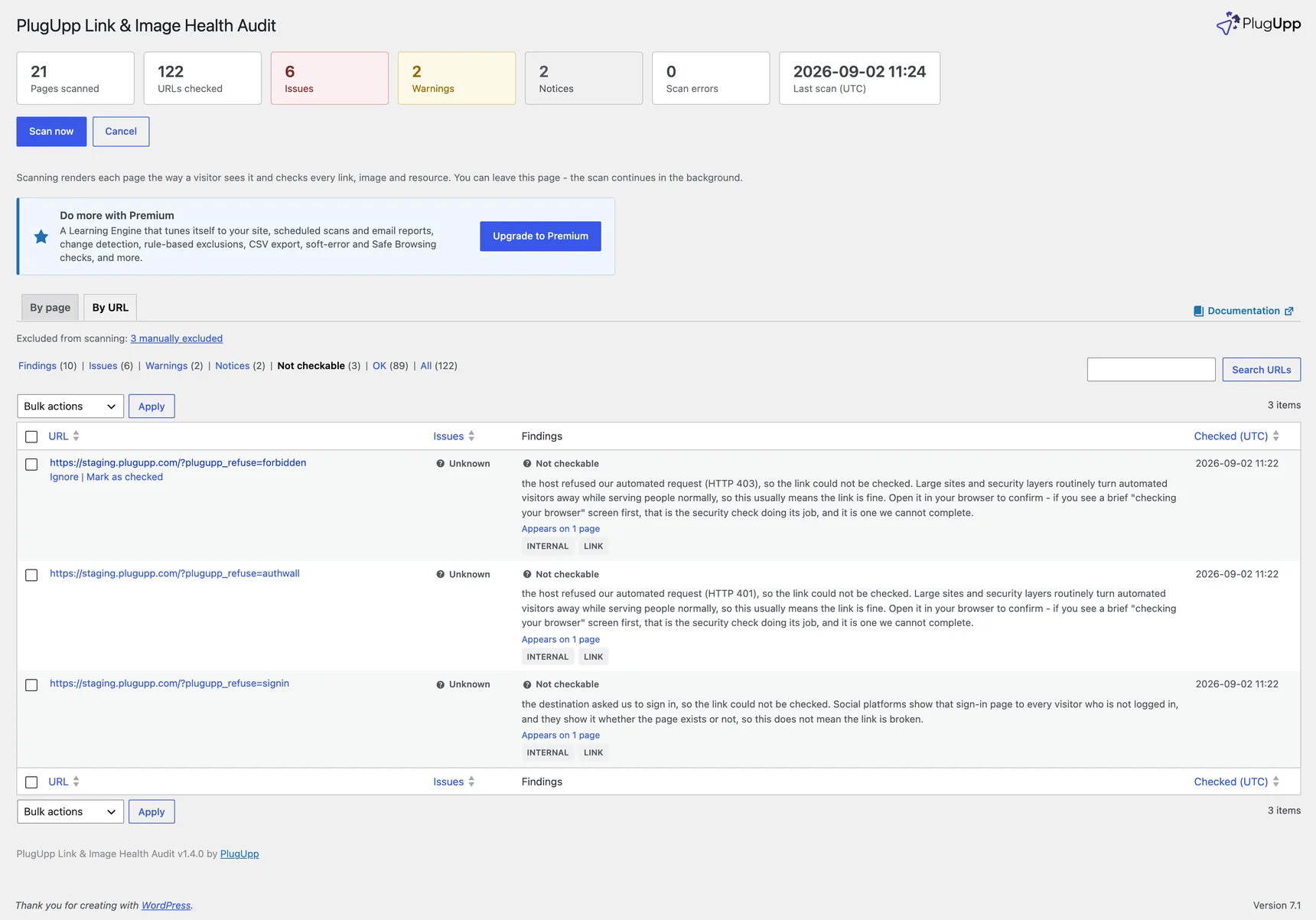
Not checkable is an important distinction: plenty of large sites refuse automated requests while serving people perfectly normally. Review sites, marketplaces, forums and social platforms all do it, behind whichever security layer they happen to use. When a host refuses us, the audit says so rather than calling the link broken, and tells you to open it in your browser to confirm. The plugin tells these apart from genuine failures so you are not chasing false positives. On Premium you can send a browser user-agent instead of the honest checker one. That helps with hosts which decide on the user-agent alone. It will not help with the large platforms: they identify automated visitors by the way the connection itself is made, which no setting can change, so those links stay in Not checkable whatever user-agent you send.
A host that is simply busy lands here too, but only after we have given it a second chance. If a link answers "too many requests" (429) or "temporarily unavailable" (503), that is the other site telling us to come back later, not a statement about your link, so the audit waits and asks again, honouring the delay the host asks for. Only if it is still saying the same thing after those retries does it appear as a warning, and the wording tells you which of the two it was. A link like that is worth re-checking yourself later; it is usually maintenance or load at the other end.
Links to social platforms land here too. Instagram, Facebook and LinkedIn answer an automated request with a sign-in page rather than the content, so the audit reports "the destination asked us to sign in" instead of a broken link. Two things follow from that, and both are worth knowing:
- It is not a fault. Those platforms show the same sign-in page to any visitor who is not logged in, so a warning here says nothing bad about your link.
- We cannot confirm the link either. They serve that same page whether the profile exists or not, so a deleted account looks identical to a live one from outside. Social links are the one case where the audit cannot check the destination for you, and it is worth opening them yourself now and again.
Because of that, links like these are counted separately under Not checkable rather than in Issues, Warnings or Notices. Nothing in that view is a problem you can act on, so keeping it out of the others means the counts you do act on stay meaningful.
Each of those rows offers Mark as checked. Open the link, and if it works, click it. The row then counts as OK and the audit records the date. Two things worth knowing about that:
- We keep testing the link anyway. Marking it checked changes how the result is shown, not whether it is checked. If the link later breaks for real, with a 404 or a dead server, it becomes an Issue exactly as it would have.
- A confirmation lasts six months. After that the link returns to Not
checkable so it gets another look, and the row tells you when you last checked
it rather than asking as though you never had. Six months is a starting point
rather than a rule; a developer can change it with the
liha_verified_expiry_daysfilter.
This is different from Ignore, which means "stop telling me about this" and would hide the link even if it genuinely broke later.
Finding details
Click any finding - a row in either view, or a count badge - to open its details.
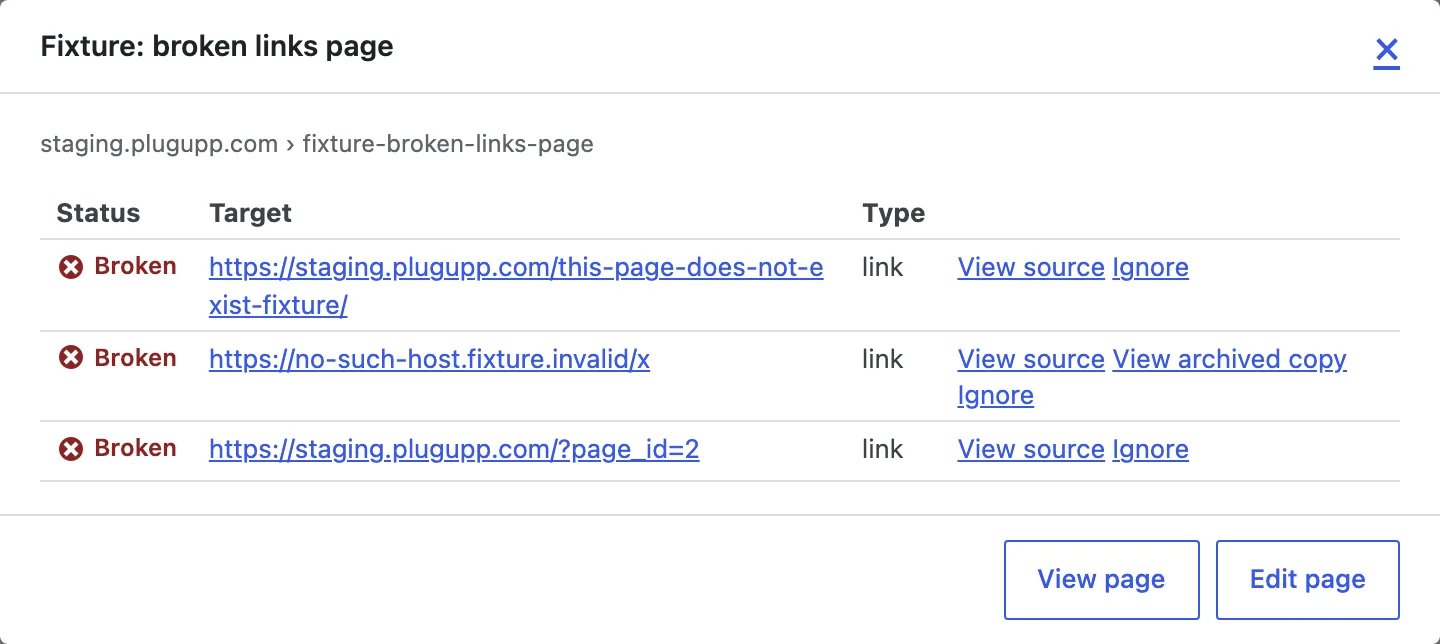
It shows:
- Where it appears. For a broken URL, the list of pages that use it, so you know the full blast radius of a single fix.
- The evidence. The verdict in plain terms (for example "404 Not Found", "SSL certificate expired", or "redirects to ...") taken from the actual response.
- Quick actions:
- View page - opens the live page in a new tab.
- Edit page - jumps to the WordPress editor for that page.
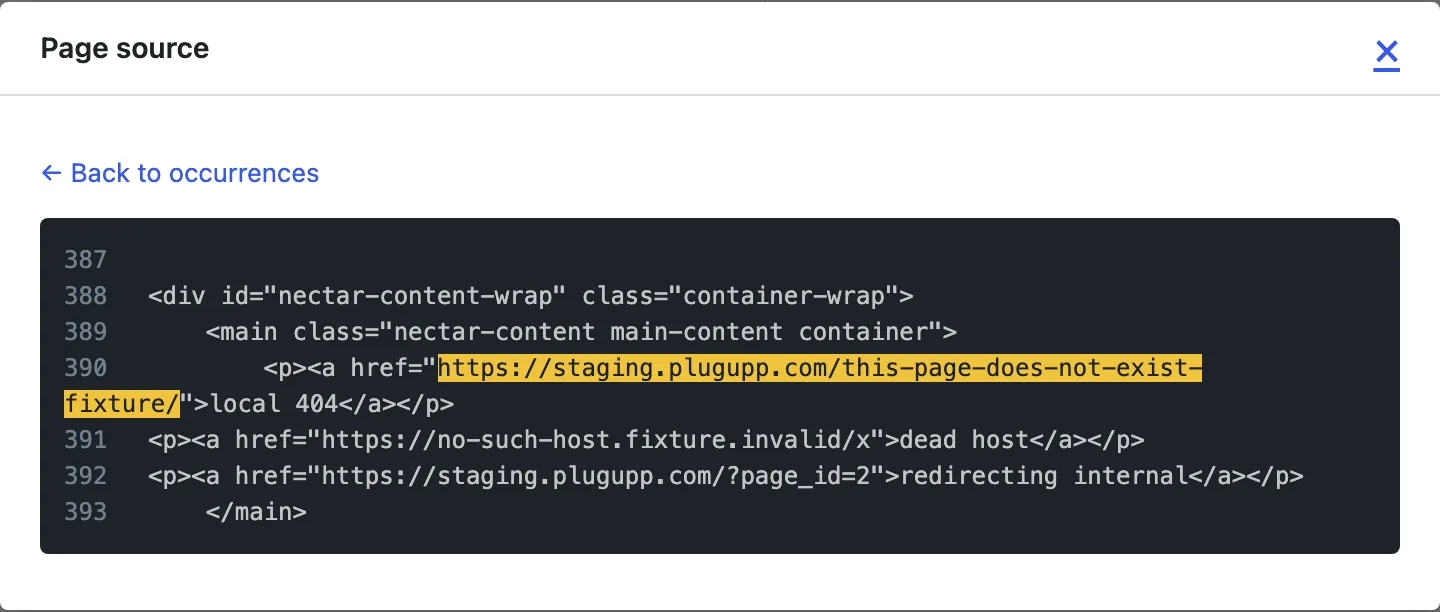
- View source - re-renders the page and highlights the exact link or image in context, so you can see precisely where it lives (see below).
- View archived copy - on broken external links only: opens the Wayback Machine's snapshots of the dead URL in a new tab, so you can see what the page used to say or pick a snapshot to link instead. It is just a link - nothing is sent anywhere and nothing is rewritten.
- Ignore - stops a URL counting while leaving it visible; reverse it any time from the Ignored view.
On the By page view, every row - including archive pages like tag or date archives - also offers Re-scan and Exclude directly from the row, without opening a scan of the whole site: Re-scan checks just that one page's links and images again, and Exclude removes the page from scanning right away.
View source
The single most useful tool for tracking down a mystery link is View source. It re-renders the page and highlights the offending link or image right where it appears in the HTML - so you can tell instantly whether it came from your content, a widget, the theme, or a page builder block.
Mixed content
On an HTTPS site, anything that loads as part of the page - images, embeds,
stylesheets, scripts, fonts - must also load over HTTPS. A reference that still
uses plain http:// is mixed content: browsers block or downgrade it, so
the image can vanish or the style can break even though the file itself is
fine. The audit flags these as warnings, with the fix spelled out on the
finding: serve the same file over https://.
Plain links (an <a> pointing at an http:// address) are not mixed content -
clicking one is a normal navigation - so they are not flagged. And on a site
that is not served over HTTPS, this check does not apply at all.
URL parameters
Cache-busters and tracking tags (like ver, utm_source and fbclid) make the
same file look like many different URLs. The plugin ignores a built-in list of
these so your counts stay stable and each real resource is checked once. You can
add your own on the Settings screen.
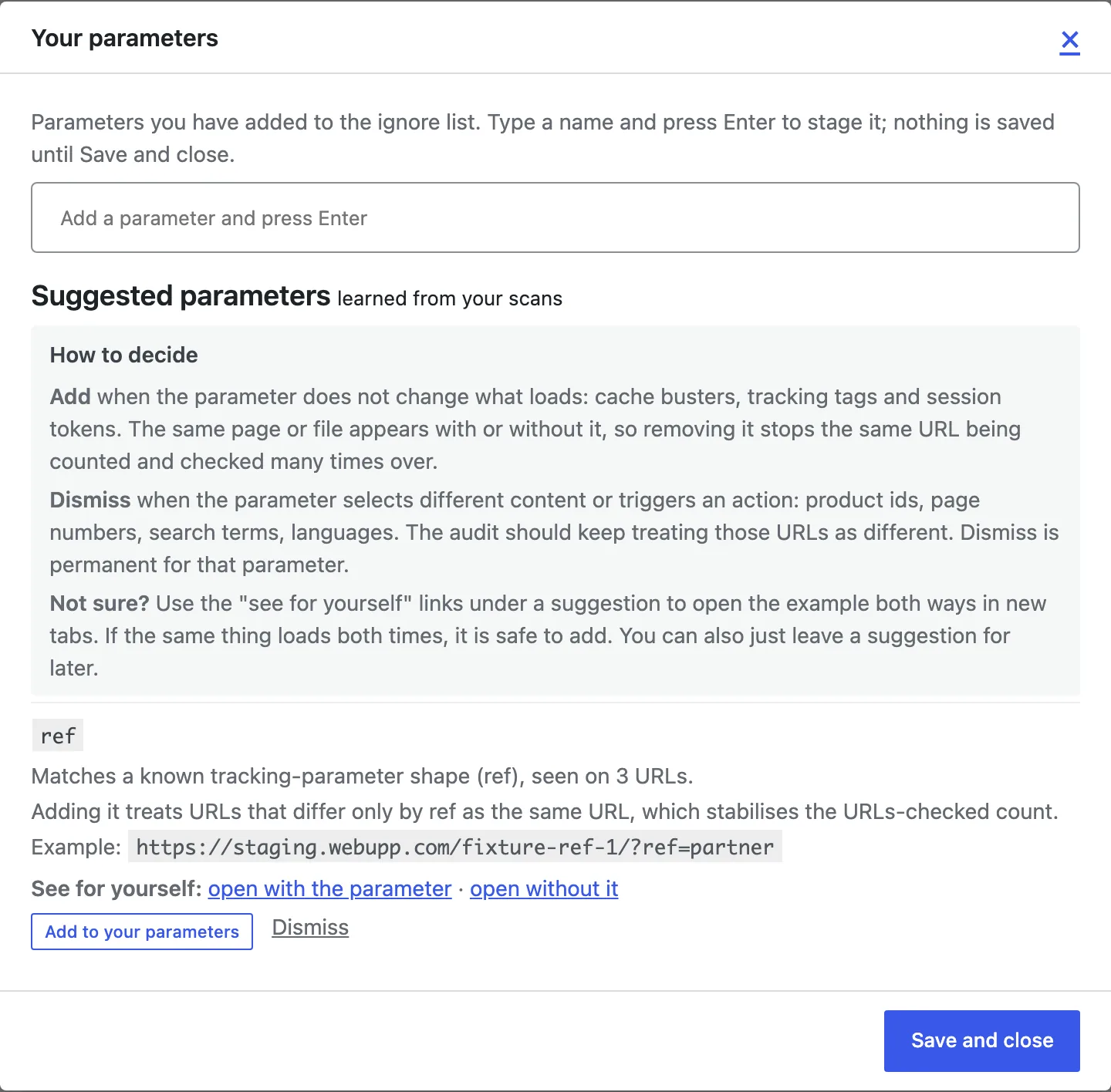
On Premium, the URL Parameter Learning Engine watches the parameters that flow through your scans and suggests new ones worth ignoring - each with evidence, a live example you can open both ways, and a one-click "add". See Plans and premium features.
The Images view (Premium)
On Premium, the audit also looks at every image's alternative text - the description screen readers announce and search engines read when an image cannot be seen. The Images view lists every image the scan found, one row per image, with its finding.
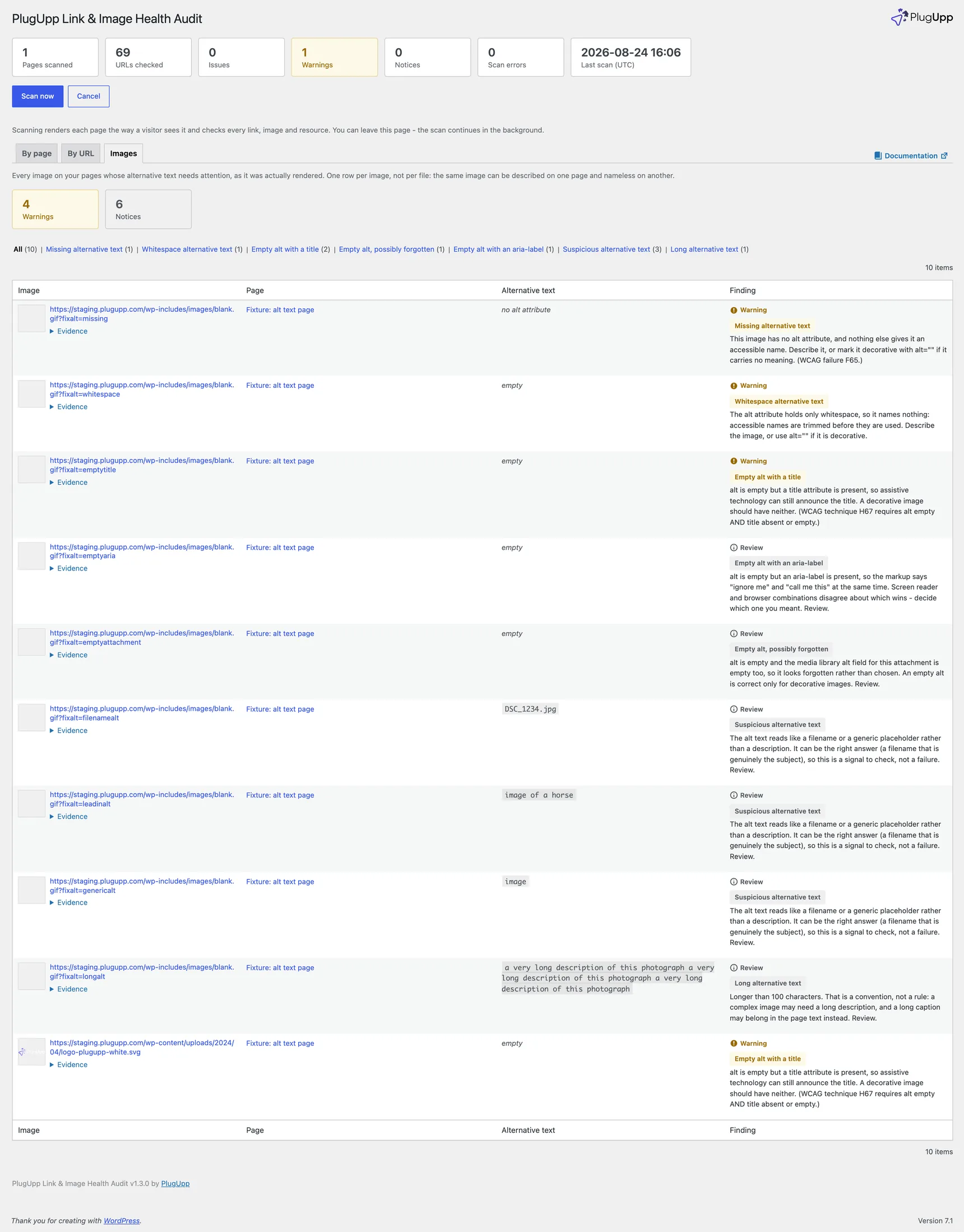
Findings split into two tiers:
- Warnings - the alt text is missing, is only whitespace, or the image has no alt but does have a title (which most assistive technology never announces). These are clear-cut: an accessible name is either present or it is not.
- Review notices - something worth a human look, not a rule violation: an
empty alt where the image's stored alt text is also empty (it looks
forgotten rather than chosen), an empty alt alongside a conflicting
aria-label, alt text that reads like a filename or a generic placeholder, or alt text that runs unusually long. These are signals, not verdicts - the audit never tells you an image "fails" anything on a review notice; it asks you to take a look and decide.
Images that are correctly marked decorative (an empty alt on a purely
decorative image), or that already have an accessible name from an
aria-label or aria-labelledby, are never flagged.
Each finding shows the page it appears on and a plain-English explanation. From there you can jump to View source to see the image in context, or Ignore it. An ignored image finding stops counting and moves off the Images view to the Ignored view, alongside everything else you have silenced - one screen shows the lot, and you can un-ignore any of them from there at any time.
The By page view's Findings card also shows the alt-text Warnings and Notices counts for that page, alongside its other findings.
Changes, filters and export (Premium)
Paid plans add more ways to work through results:
- Change detection - after each scan, a summary shows what newly broke, what changed, and what was fixed since the last scan.
- One-click filters and CSV export - narrow the results to a specific issue type and export any view.
- Scheduled scans and email reports - run scans automatically and get the results, with the changes digest, by email.
The free plugin shows everything in the two views and the finding details.