Reviewing your results
After a scan, every audited page appears across three tabs. Each row is one page, shown the way search engines and social platforms actually see it - built from the page's real rendered output, not from your SEO plugin's settings screen.
The three tabs
- Search Appearance - each page as a Google-style mobile result: breadcrumb, title, description and an indicative thumbnail, with the Issues badge alongside and any Warning, Notice and Robots flags on the card. A summary across the top shows how many items were scanned, how many have issues, the total issue count, and the last scan time.
- Social Appearance - each page as a Facebook and LinkedIn style share card: image, title and description, plus the X (Twitter) card type.
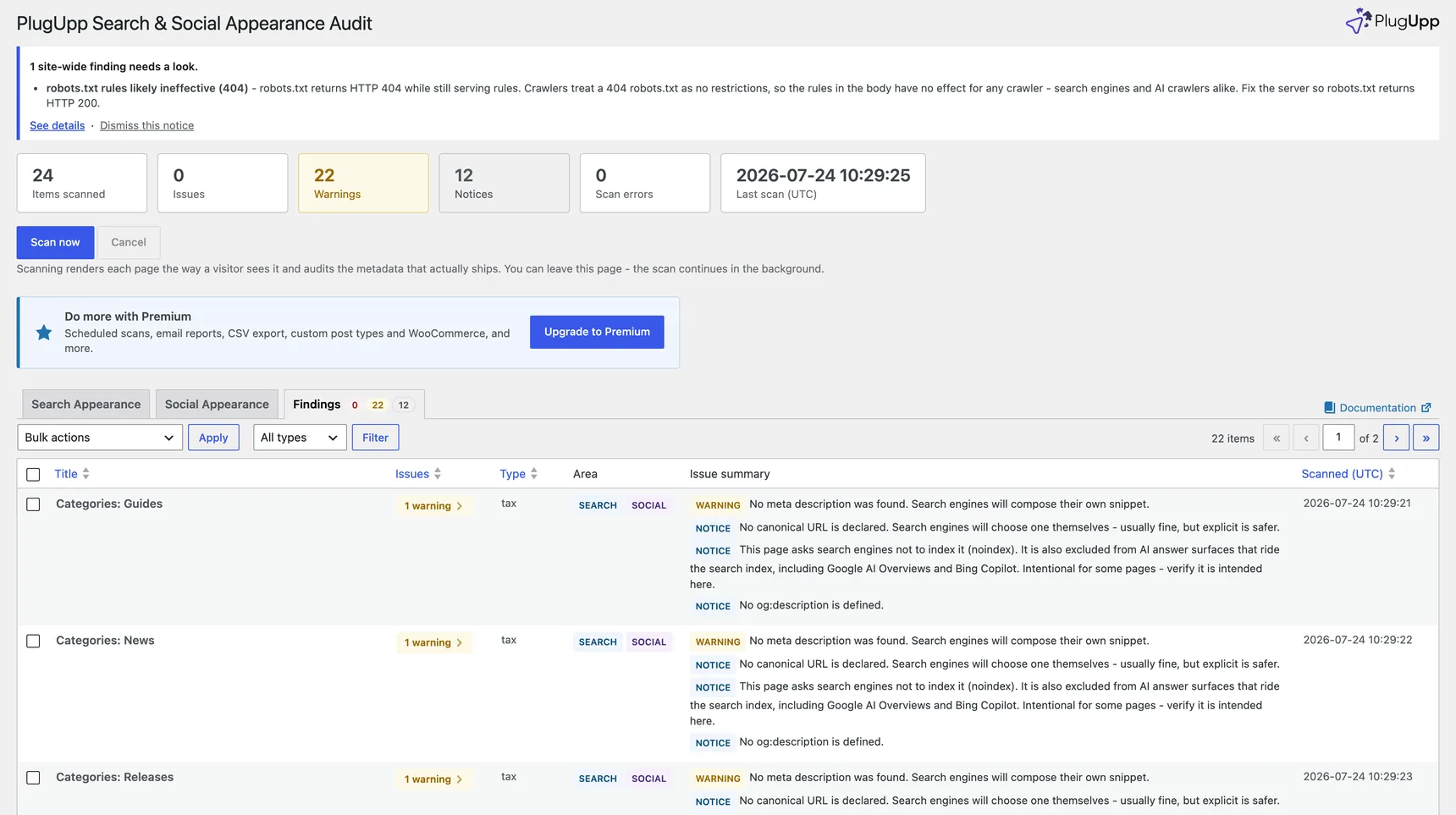
- Findings - every page with something flagged, grouped by area with a one-line summary and separate Issues, Warnings and Notices counts, so you can triage the whole site without opening each page.
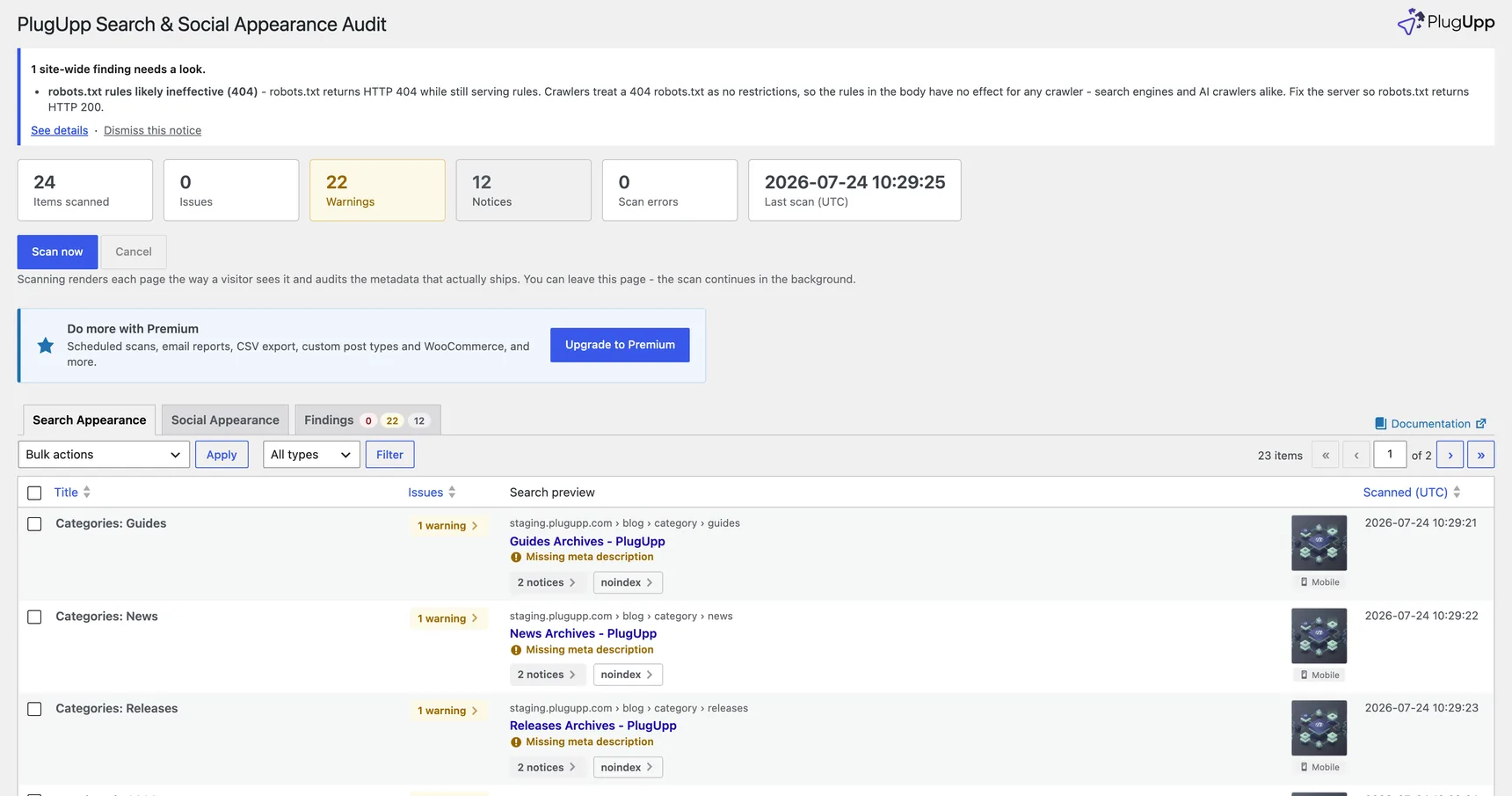
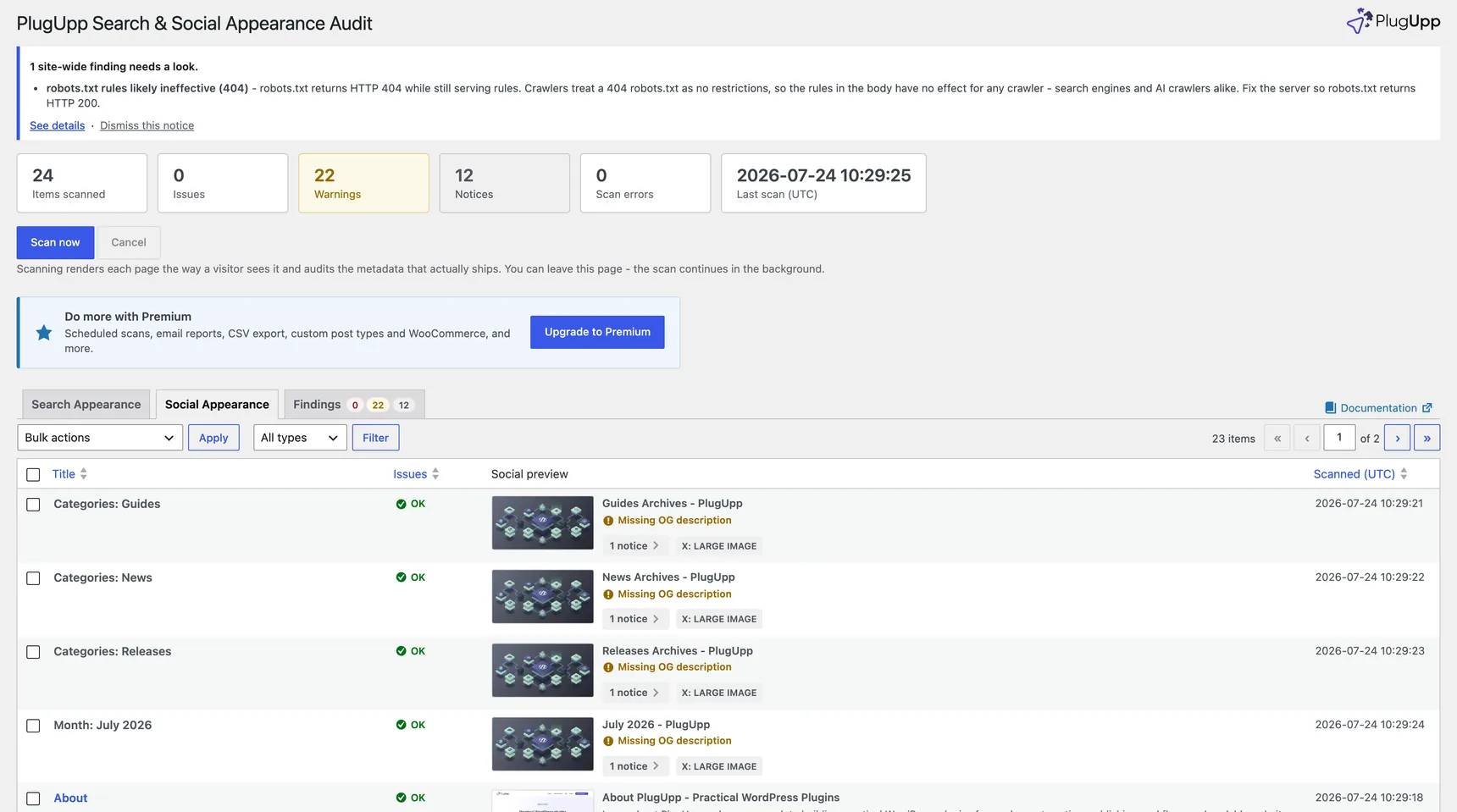
Hover any title or description to read the full text when it is truncated in the card.
Archive pages
Archive pages - the blog home, category, tag and custom taxonomy archives, and monthly date archives - appear as their own rows on every tab, labelled by what they are (for example "Categories: News" or "Month: June 2026"). They audit exactly like posts: same previews, same issue detection, same modal.
Two differences from post rows:
- There is no Edit action - archives are generated pages, not posts. Their titles and descriptions come from your SEO plugin's archive templates (or the theme), so that is where you fix an issue. View, Re-scan and Exclude all work as normal.
- The type filter above the results gains an Archives choice, so you can look at just your archive pages (or filter them out).
You can switch archive auditing off under Settings with the "Audit archive pages" checkbox - stored archive results are removed, and they return after the next scan if you re-enable it.
The Site row
One row is not a page at all: Site checks: robots.txt, AI access, favicon. It audits the things that belong to your site as a whole rather than to any one page: your robots.txt, which documented AI crawlers are allowed to read the site (the AI access badge), whether your rendered homepage declares a working favicon - the little icon Google shows next to search results and chat platforms show beside link previews - and whether the whole site is currently hidden from search. If no favicon is declared and the classic /favicon.ico is missing too, or the declared icon URL does not resolve, the row carries a warning in every plan. Because none of this has a search snippet or share card, the row appears on the Findings tab only, and in the type filter it sits in the Archives bucket. See AI readiness for the full tour of the AI side.
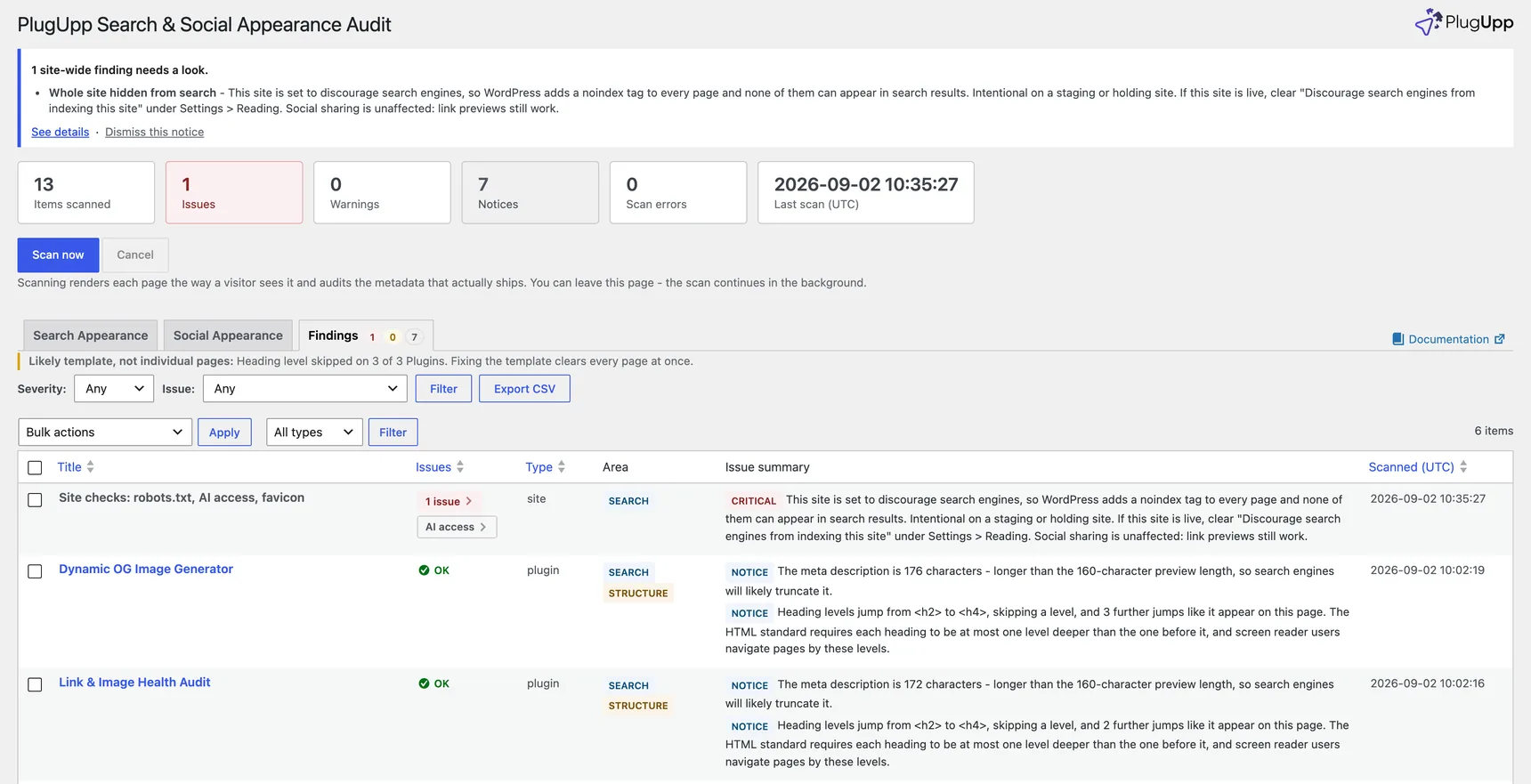
"Whole site hidden from search"
This is the one finding on the Site row that is critical in every plan. It means "Discourage search engines from indexing this site" is switched on under Settings > Reading, so WordPress adds a noindex tag to every page and no page on the site can appear in search results. On a staging or holding site that is exactly right. On a live site it is usually a leftover from the build, and nothing else in the audit matters until it is cleared.

Because it affects the whole site, it also appears in the site-wide notice across the top of the dashboard, not just on the Site row. Clear the setting under Settings > Reading and re-scan to confirm. Social sharing is unaffected either way - link previews still work.
Click any preview image to see what each platform crops
Click a preview image to open it full size. The overlay highlights the exact area the platform keeps and dims the edges it trims, so you can see at a glance whether anything important (a logo, a face, key text) falls outside the frame:

- On the Social card the frame is the 1.91:1 share-card crop Facebook, LinkedIn and similar platforms use.
- On the Search card the frame is Google's square mobile-thumbnail crop.
If an image already matches the platform's shape, no frame is shown - nothing is being cropped. Search thumbnails are indicative: Google chooses its own image and may show a different one, or none.
The flags
Findings are split by severity, so advisory items are never counted as problems:
- Issues - the number of critical problems on the page, or "OK" when there are none. This is the badge in the Issues column.
- Warnings - things worth fixing but not breaking, shown on the card when present (for example a missing meta description or og:image).
- Notices - advisory points to be aware of, shown on the card when present (for example a missing canonical, or a deliberate noindex).
- Indexable / noindex - whether the page allows search indexing.
Each of the Issues, Warnings and Notices badges opens its own list. Canonical findings no longer have a separate flag - they appear under Warnings or Notices according to their severity. Click any badge - or any row on the Findings tab - to open the issue-details popup.
The issue-details popup
The popup is where you see why a page was flagged and decide what to do about it.
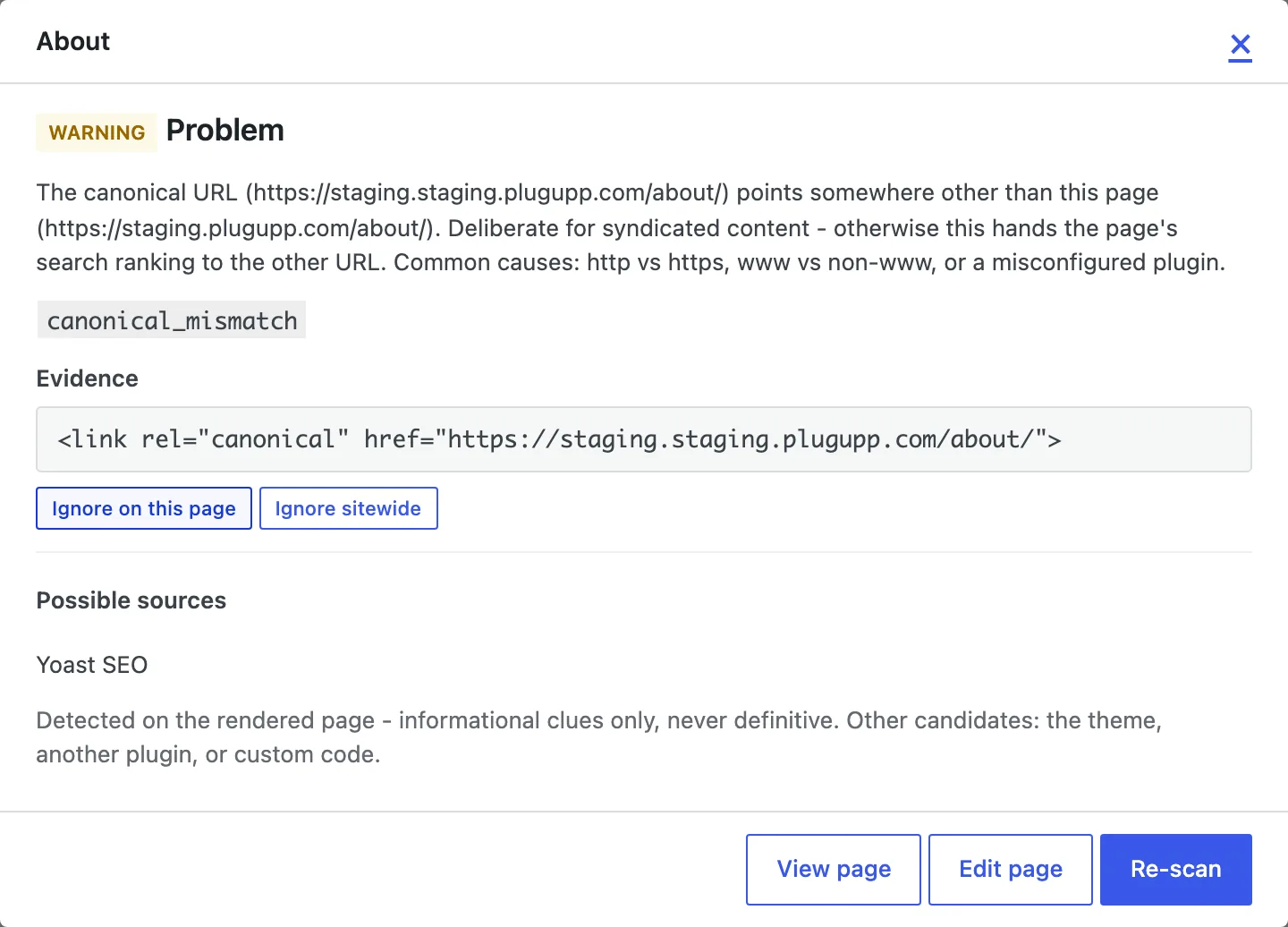
It shows, for the page you clicked:
- Each issue, with its evidence. Every problem is listed with the exact value taken from the rendered page - the actual title, description, canonical URL, robots directive or image URL that shipped - so you are never guessing about what the plugin saw.
- Actions along the bottom:
- View page - opens the live page in a new tab.
- Edit page - jumps to the WordPress editor for that page.
- Re-scan - re-audits just this page on the spot, so you can fix something and confirm it immediately without running a full scan.
- Ignore an issue. From the popup you can ignore an individual issue either on this one page or sitewide (for example, a deliberate noindex you do not want counted). Ignored issues stay visible in the popup, greyed out, but stop counting anywhere - the per-page and total issue counts drop accordingly. You can reverse this any time from the Ignored view, where every sitewide and per-page ignore is listed with an un-ignore link.
What the Findings tab flags
The free plugin checks the rendered output of every page for:
-
Title - missing, or more than one title tag present.
-
Meta description - missing, duplicated, or conflicting; and now also too long for your configured preview length (so search engines will truncate it) or very short (a weak snippet).
-
Open Graph (social) - missing og:title, og:description or og:image; an og:image that is not an absolute URL, that fails to load, or that is served in a format social platforms do not display; or multiple og:image tags. When a page has no og:image at all, the finding also names the likely cause where it can, and a page that shares an image which is not its own featured image gets a notice saying so - see Why a social image is missing below.
-
X (Twitter) card - missing card type.
-
Canonical - missing, duplicated, or not an absolute URL; or a canonical that conflicts with a noindex.
-
Robots - the page is set to noindex, or to max-image-preview:none (so Google will not show a thumbnail for it in search). Both are intentional on some pages, so they are flagged for you to verify rather than treated as errors. A noindex page is also excluded from the AI answer surfaces that ride the search index, including Google AI Overviews and Bing Copilot, and the notice says so. Directives are read from the page's robots tags and from its
X-Robots-TagHTTP response headers, and every directive found counts, not just the first - see A noindex that is not in your page below. See Pages you have set to noindex for what noindex does to the rest of that page's findings. -
Heading structure - the page has no H1 heading, more than one H1, or a heading level that skips (an H2 straight to an H4). These read the body of the rendered page rather than its head, they carry a Structure label in the Findings list, and each one shows the page's own heading outline as evidence. They are structural findings, not ranking advice: Google states that the number and order of headings does not affect ranking, and no accessibility success criterion requires an H1 or forbids a skipped level. See Heading structure for what each one means and how to fix it.
Findings in the AI area - crawler access, and the page directives that limit how a page can be used in AI answers - are a paid feature; the AI access panel itself is free. See AI readiness.
Each issue carries a severity (critical, warning or notice) so you can prioritise. By default pages are sorted by severity - those with critical problems first, then warnings, then notices - so the pages that need attention are always at the top. You can still sort by any column.
Why a social image is missing
"No og:image is defined" tells you the share preview is broken. Where it can, the audit also tells you why.
The common cause is a featured image in a format social platforms do not display. Social platforms render JPEG, PNG, GIF and WebP; they do not render SVG or AVIF. When a page's featured image is one of those, some SEO plugins leave og:image out altogether rather than publish an image the platforms would reject - so the page looks completely correct in the editor and shares with no image at all. Nothing on the page says so, which is why this takes people a long time to find.
When the page is a post or page with a featured image in one of those formats, the finding names it:
No og:image is defined. Social platforms will guess an image or show none. The featured image (attachment 5849) is image/svg+xml, a format social platforms do not display, and some SEO plugins leave og:image out rather than emit an image platforms would reject. Use a JPEG, PNG, GIF or WebP featured image, or set a social image explicitly.
with the attachment, its format and its filename on the evidence line:
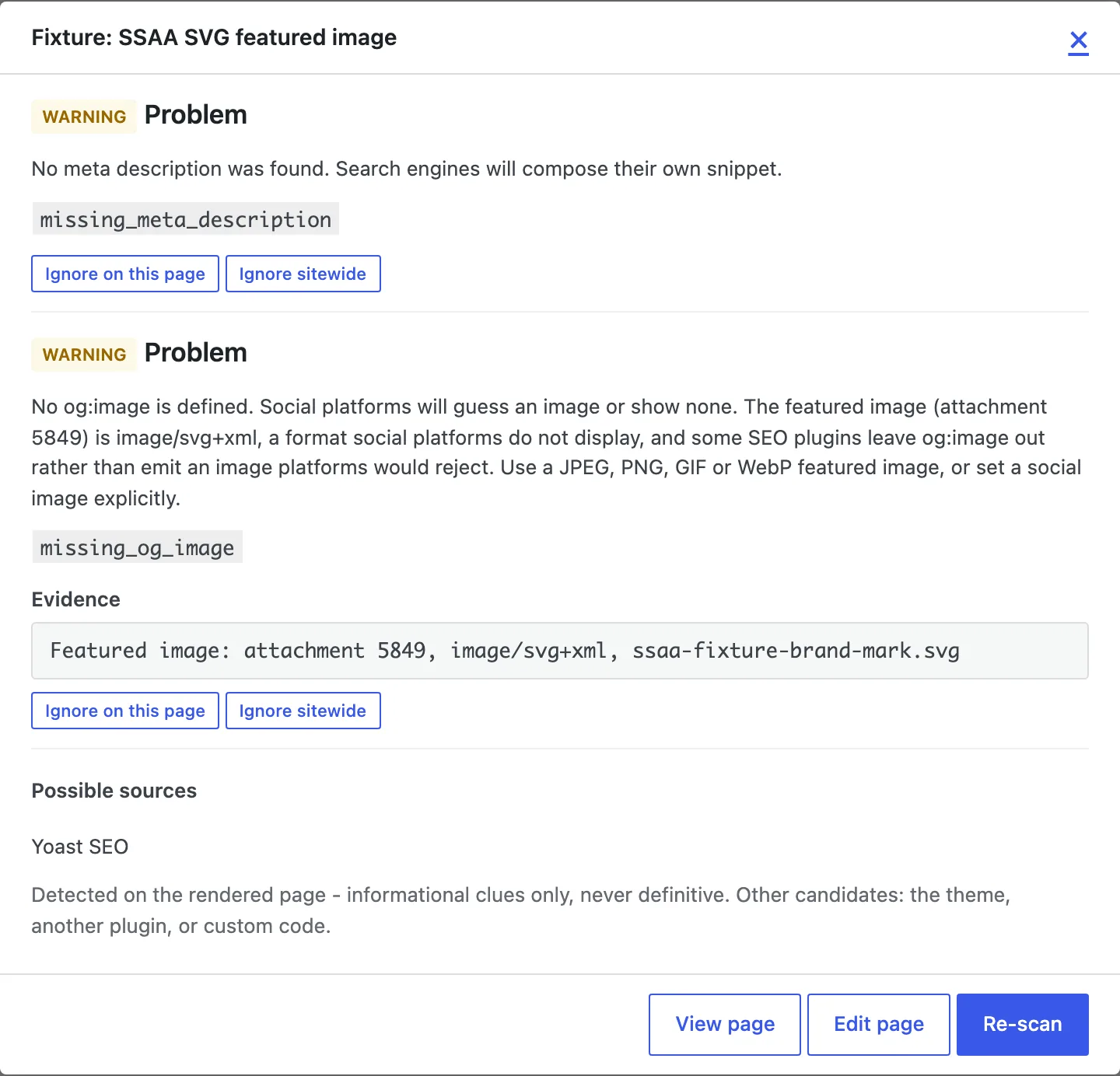
Two things this deliberately does not claim. It does not say which plugin dropped the image: the audit can measure your featured image and its format, it cannot see inside another plugin's decision, so it says "some SEO plugins" and stops. And it only looks at the featured image - if your SEO plugin has its own social image set for that page, the audit cannot read that choice, so a missing og:image with a perfectly good featured image gets the plain message with no cause attached.
A featured image in one of those formats has a second, quieter outcome: the page does share an image, it just does not share yours. Something stands in for the featured image - a share image generated for you by a social-image plugin such as PlugUpp Dynamic OG Image Generator, or your SEO plugin's site-wide default social image - so the share preview looks perfectly good and nothing anywhere says the page's own image was never used. The audit reports that as a notice, Featured image is not the shared image:
The featured image (attachment 5849) is image/svg+xml, a format social platforms do not display, so it is not the image that shares - the og:image comes from elsewhere. If you want this page's own image on shares, use a JPEG, PNG, GIF or WebP featured image.
Both the og:image that actually shares and the featured image that does not are on the evidence lines, so you can see what is going out in its place. Open it from the Social Appearance tab by clicking the page's Notices badge:
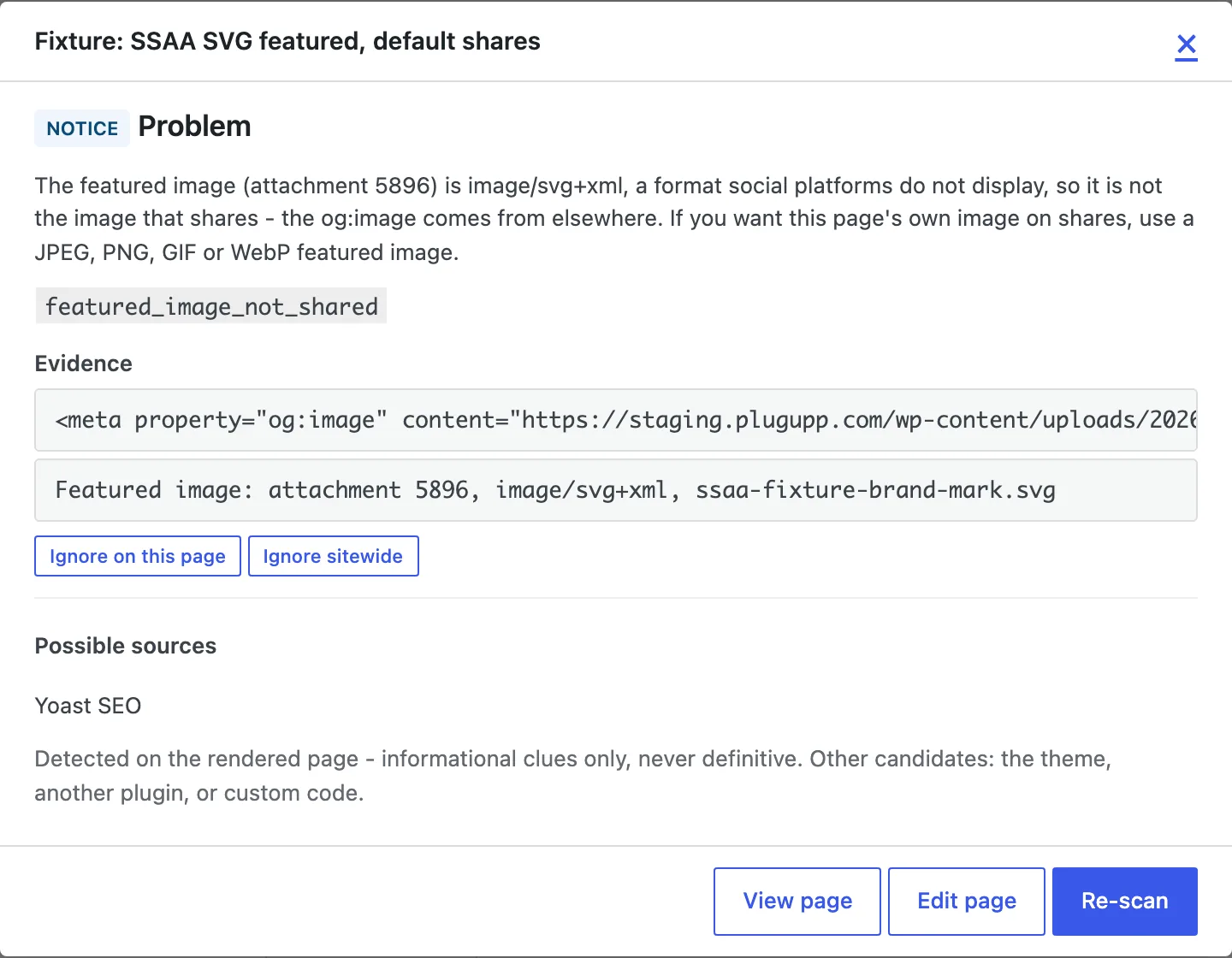
It is a notice rather than a warning because nothing is broken - the page shares, and it shares a real image. It is worth knowing because on a site with a default social image every page in this position shares the same picture, which is rarely what you would have chosen. Swap the featured image for a JPEG, PNG, GIF or WebP and the page shares its own image again.
A third case is a page whose declared social image is itself served in one of those formats. That is its own warning, OG image format not displayed by social platforms, with the served content type as the evidence:
The og:image is served as image/svg+xml, a format social platforms do not display. Shares may show no image. Use a JPEG, PNG, GIF or WebP image instead.
In every one of these cases the fix is the same: use a JPEG, PNG, GIF or WebP, and re-scan the row to confirm.
When a finding is the template, not the page
Some findings repeat because every page of a type was built from the same template. Heading problems in particular: one template with its title styled as an H3 produces "No H1 heading" on every page built from it.
When a heading finding covers at least three pages and most of one content type, a notice above the results says so before you start working through the list:
These findings repeat across a whole content type, which usually means the template rather than the pages themselves.
- No H1 heading - every one of your 30 Venues (view them)
Fixing the template once clears every page.
Fixing the template and re-scanning clears all of those rows at once. The counts are worked out fresh each time you open the page, so they always match the rows underneath. See Heading structure.
Pages you have set to noindex
A page set to noindex cannot appear in a search result. So a finding about how that page would look in a search result - its meta description length, a missing canonical, a hidden search thumbnail - is describing something that will never be shown. On a noindexed page those findings are listed as notices rather than issues or warnings, and each one carries a line saying why:
This page is not indexable (noindex), so it cannot appear in a search result and this has no effect on its search appearance.
Three things are worth knowing about how this works:
- Nothing is hidden or removed. Every finding is still listed in the popup and still counted in the page's finding total. It changes severity only, so it stops being counted as a problem - and a page whose remaining points are all notices reads as OK in the Issues column.
- Findings about the noindex itself keep their severity, as do title findings. A missing or duplicated title still matters on a noindexed page: the title is the page's identity in the browser tab and in bookmarks, and it is what social platforms fall back to when there is no og:title.
- Social findings are untouched. A noindexed page shared in a chat, or posted to a social platform, still renders its link preview - so a missing og:image is exactly as much of a problem as it was before. AI findings are untouched for the same kind of reason: AI crawlers fetch pages directly rather than through the search index.
If a lot of pages go quiet at once, check the Site row: when the whole site is hidden from search, every page is noindexed and every one of these findings on every page becomes a notice. That single critical finding is the one to act on.
A noindex that is not in your page
A page can be told not to appear in search in two ways: a robots tag in the
page, or an X-Robots-Tag HTTP response header sent with it. The header is
exactly as binding as the tag, and it is invisible if you view the page source
- which makes a header-only noindex one of the hardest things on a site to track down.
The audit reads both. When a page's noindex comes only from a header, the finding says so:
The directive is sent as an X-Robots-Tag response header, not a meta tag, so it does not appear in the page HTML - look in the server, CDN or security plugin configuration.
and the headers themselves are on the evidence lines, so you can see exactly what was sent.
Where to find it. A noindex is a notice, and the Issues column carries criticals and warnings only, so open it from the Search Appearance tab: click the Notices badge on that page's preview card. The Robots flag on the same card is a fact, not a finding - it reads "noindex" and its popup lists the combined directives under Robots directives - so the explanation lives under Notices rather than behind the flag.
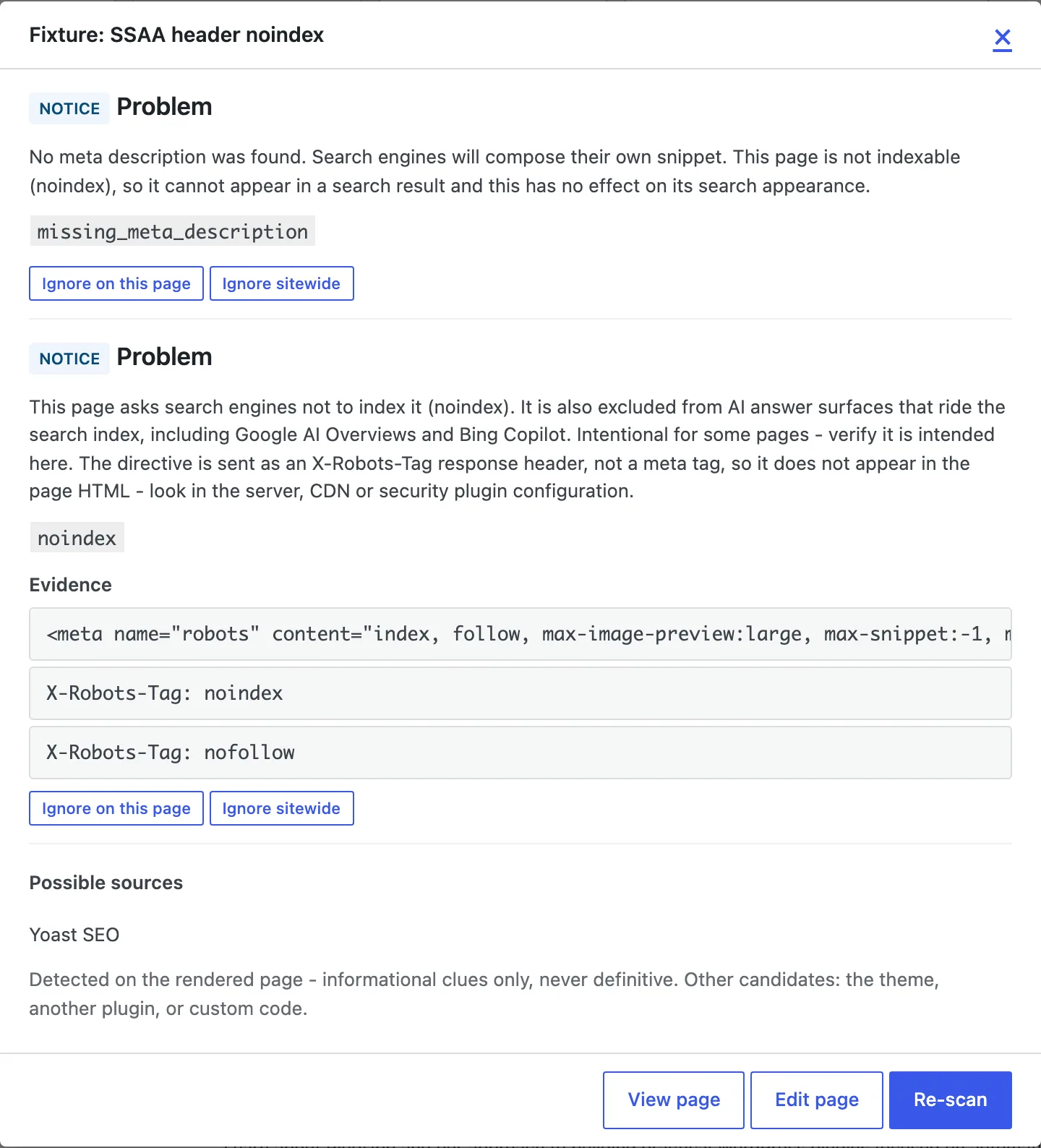
Three things follow from this:
- Every directive counts, not just the first one. If a page carries two
robots tags, or a tag and a header, the Robots directives fact shows them
combined - a page whose tag says
indexwhile its headers saynoindexandnofollowlists all three - and the findings read all of them. Before, only the first tag was read, so a noindex in a second tag could be missed. - Header-borne directives behave like any other. A page noindexed by a header gets the same treatment as one noindexed by a tag, including the noindex rule above that lists its search findings as notices.
- A directive aimed at one crawler still counts. A header can name a
crawler, as in
googlebot: noindex. The audit counts that as a noindex, because the page is noindexed for that crawler, and shows the whole header on the evidence line so you can see which crawler it named.
If a page was reporting as indexable before this version and now reports as noindex, nothing changed on your site: the audit can now see a directive that was always being sent.
Changes since last scan
Paid plans track what changed between scans. After a full scan, each tab shows a Changes since last scan badge when something has moved. Open it to see, for that tab's area, what was newly flagged, what was fixed, and which titles, descriptions or images were edited - regressions first. The comparison is against the previous full scan, so the first scan after you start has nothing to compare against yet, and single-page re-scans do not move the baseline. The scheduled email report lists the same per-page changes.
Filtering and export
Paid plans add severity and issue-type filters above the results and CSV export, for working through a large site or sharing findings. The free plugin shows everything in the tabs and the popup.