Dynamic attachments
Send each page's own files from one shared form. Pick the files on the page, put the form on the page, and the notification attaches that page's files.
How it works
- Every page of the types you choose gets an Email attachments box on its edit screen. You pick one or more files there, from the Media Library or the private files.
- You put the form on that page.
- When someone sends the form, Gravity Forms saves the page they sent it from on the entry.
- The notification reads that page's Email attachments box and sends every file in it.
One form and one notification can then deliver different files from every page it sits on. Nothing is typed into the form, and there is no hidden field to set up.
1. Choose where the box shows
Go to Forms, Settings, Additional attachments. Under Show the Email attachments box on, tick each post type whose pages hold files. Posts and Pages are ticked until you change them. Press Save Settings.
This is the plugin's only site setting. Media, menu items and other internal types are never listed.
2. Pick the files on each page
Edit a page of a ticked type.
- In the block editor, open the Post or Page tab of the sidebar. The Email attachments panel is near the end.
- In the classic editor, the Email attachments box sits in the right-hand column.
Press Add files and pick one or more files in the Media Library tab, or upload new ones in Upload files. For files whose web address should never be shown, use the Private files tab (see Private files). Press Add to page. Each file is listed in the order you added it, with a small preview, its file name and a pill under the name saying Private or Media Library, then View and Remove. Add files again adds more. Remove takes one file off this page and nothing else. Then update the page as usual.
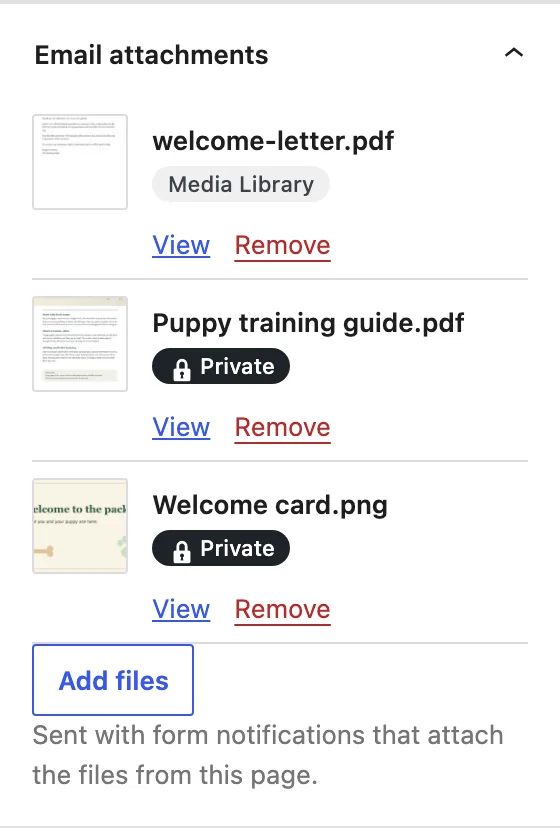
Any type your Media Library accepts can be attached. Whoever can edit the page can change its files.
If a file is deleted from the Media Library, or a private file is deleted on the settings tab, it is taken off every page's list. A page whose list is then empty holds its notifications back until you add a file.
3. Put the form on the page
Add the form to the page itself, in the content or in the template that shows the page. The page must be the single page being viewed when the form is sent. A form on an archive, on the home page's post list or in a preview has no page, so its entries have none. A notification that needs the page's files is then held back with source_missing. A form in a popup counts as sent from the page the popup opens on.
4. Turn it on in the notification
Edit the notification and find the Additional attachments section at the end.
- Turn on Attach the files from the page the form was on.
- Read the line that appears under it. The plugin looks through the content of your published pages for this form and counts the files in their Email attachments boxes.
- Press Update Notification.
The line reads one of these:
- "The form is on 1 published page, which has 2 files in its Email attachments box." You are ready.
- "The form is on 2 published pages, and 1 has files in its Email attachments box." A send from the other page is held back until you add files to its box.
- "No published page with this form has files in its Email attachments box yet." Add files to a page's box, or check the form is on the page.
- "No published page has this form in its content." The plugin reads page content. A form placed by a page builder's own widget or by a theme template may be there all the same. Check the page in a browser.
Only published pages without a password, of the types ticked under Show the Email attachments box on, are counted, because those are the only pages whose files can be sent. The line is worked out when the notification opens, so update a page and reopen the notification to see the change.
You can also turn on Static attachments in the same section. Those files go with every send, and the page's files go as well. See Static attachments.
This needs Gravity Forms 2.9 or later, the first release that saves the page on each entry. On an older release the entry has no page, so the notification is held back with source_missing.
Which pages are used
A page's files are sent only when all of these hold at the moment of sending:
- The entry has a page, and that page still exists.
- The page is published. Drafts, pending, private, scheduled and trashed pages are refused.
- It has no password.
- Its post type is ticked under Show the Email attachments box on.
- Its Email attachments box holds at least one file, and every file is a real file in your uploads folder.
Every file in the box goes, or none does. Only the box is read. Nothing else on the page is ever used in its place. The rules are the same for a visitor's submission and for an administrator's resend from the entry screen. Unticking a type stops its pages' files being sent, without touching the files chosen on them.
Resends and delayed sends
A resend uses the page saved in the entry and the files that page holds today. If you change a page's files, later resends send the new ones. The plugin does not keep old copies of files.
Public forms
On a public form, the files of any published page that offers them can reach anyone who sends the form. That includes a page the form is not on, because whoever sends a form can choose which page it is sent from. Only choose files for pages you are happy to send them from. Keeping a file private, or protecting its web address with a plugin such as Prevent Direct Access, does not make an emailed copy private, and an emailed copy cannot be recalled.