Static attachments
Files you pick once, from the Media Library or the private files, sent with every copy of one notification.
Choosing files
- Edit the notification, find the Additional attachments section and turn on Static attachments. The file list and Add files appear beneath it. An empty list says "No files chosen. Add files opens the Media Library and the Private files tab."
- Press Add files.
- Pick one or more files in the Media Library tab, or upload new ones in Upload files. For files whose web address should never be shown, use the Private files tab (see Private files). Then press Add to notification.
- Press Update Notification.
Each chosen file is listed with a small preview, its file name and a pill under the name saying Private or Media Library, then View and Remove. Remove takes one file off the list and nothing else. Pressing Add files again adds to the list.
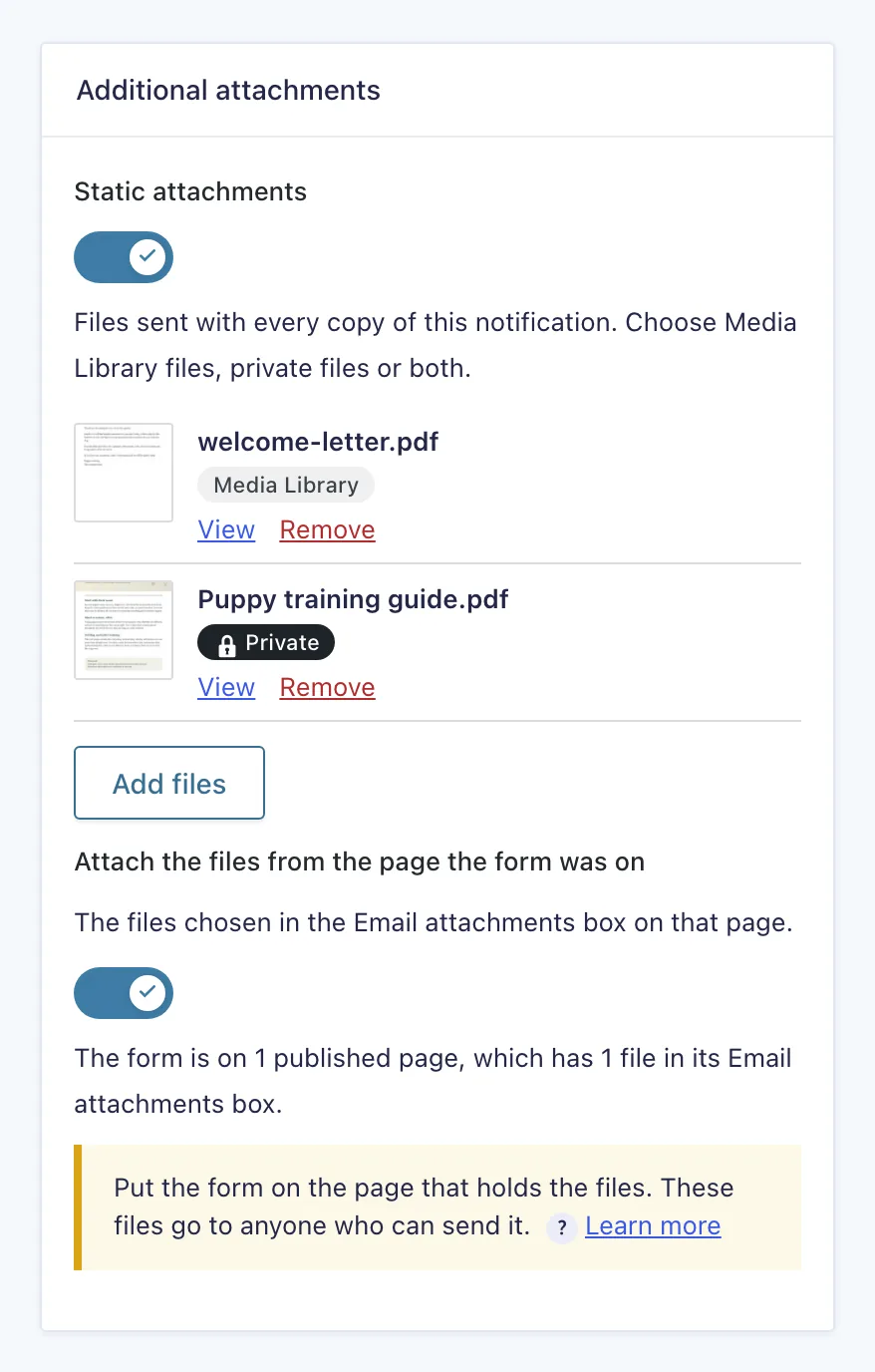
With Static attachments on, at least one file is needed. Saving with an empty list shows an error and saves nothing. Turning the switch off stops the files being sent. The list is kept, so turning the switch back on brings the same files back.
Any type your Media Library accepts can be attached: PDFs, Word documents, images, text files and so on. The plugin does not change what can be uploaded, and uploading here follows your usual Media Library permissions.
What is stored
The notification stores a reference to each file, never a web address and never a copy of the file. For a Media Library file that is its ID, for a private file its number. At every send the plugin looks up where the file is right now. Replace a file through the Media Library, or move it with a protection plugin, and the next send picks up the change.
Static only, from the page only, or both
A notification can use static files only, the files from the page only, or both. With both, every file is required. If the files from the page cannot be prepared, the notification is held back. It is never sent with the static files alone. See Dynamic attachments.
When a chosen file disappears
Deleting a file from the Media Library takes it off every notification's static list, and deleting a private file on the settings tab does the same. If that leaves the list empty while Static attachments is on, the notification is held back with config_invalid until you add a file or turn the switch off.
A file that is gone some other way stays in the list as Missing file, with its number. Remove it and save. Until then, sends of that notification are held back with the reason attachment_missing. See Failure diagnostics.
Duplicates
If the same file is also attached from the page, by Gravity Forms' own uploaded-file setting or by another plugin, it goes into the email once.
Copying forms between sites
Media Library IDs and private files differ from site to site. A notification remembers which site it was saved on. After an import on another site it is held back until you open it, check each file and save it there. The editor shows a red notice at the top of the section until you do.