Private files
Files that exist only to be emailed. A private file is not in the Media Library, the site never shows its web address, and nothing links to it.
What a private file is
When you upload a private file, the plugin keeps it in its own folder inside your uploads folder. Each file gets a folder of its own with a long random name. The file inside keeps its own name, made safe for a server. Spaces become dashes and accents are dropped, so "Price list.pdf" is stored as "Price-list.pdf". Its real name, type, size, upload date and uploader are kept in a small table, and that real name is what every screen shows and what the email carries.
The protection is that nobody is told the address. No address for a private file or its preview is ever published or shown. The plugin never prints one on a screen, in its log, in an entry note or in an email. A file can only be reached by an address nobody is given. Nothing on the site links to it, so a visitor or a search engine has nothing to follow, and the folder's name is far too long to guess. Opening the folders in a browser shows an empty page, never a list of files. No server rule is involved, so a private file is equally private on any host, and a site moved to another host keeps working.
Be clear about one thing. If someone did learn a file's full address, the file would download. That is why the plugin never discloses one. Gravity Forms logging (Forms, Settings, Logging) writes each email's attachment list to its log. A private file appears there as a placeholder under its real name. The plugin puts the address back only at the last step, inside WordPress's own mail function, so it never reaches Gravity Forms' log.
An emailed copy belongs to its recipient, like any attachment. It cannot be recalled.
Mail plugins
The file reaches the recipient under its own name. On WordPress 6.2 and later, WordPress's own mail sends the exact real name you see in the list. Older WordPress, and some mail plugins such as Post SMTP, name an attachment after the stored file instead. The recipient then sees the stored name, such as "Price-list.pdf", which is still the file's own name.
A mail plugin needs the file's location to attach it, so it sees the full path, as it does for every attachment. Post SMTP, with its log level set to debug, writes the full path of each attachment to the PHP error log. That log belongs to your server, outside this plugin. Other mail plugins may do the same. Keep mail debug logging off on a live site, and keep the server's error log private.
Uploading
Private files are uploaded in the same window you use to choose Media Library files.
- Press Add files in a page's Email attachments box, or in a notification's Static attachments list.
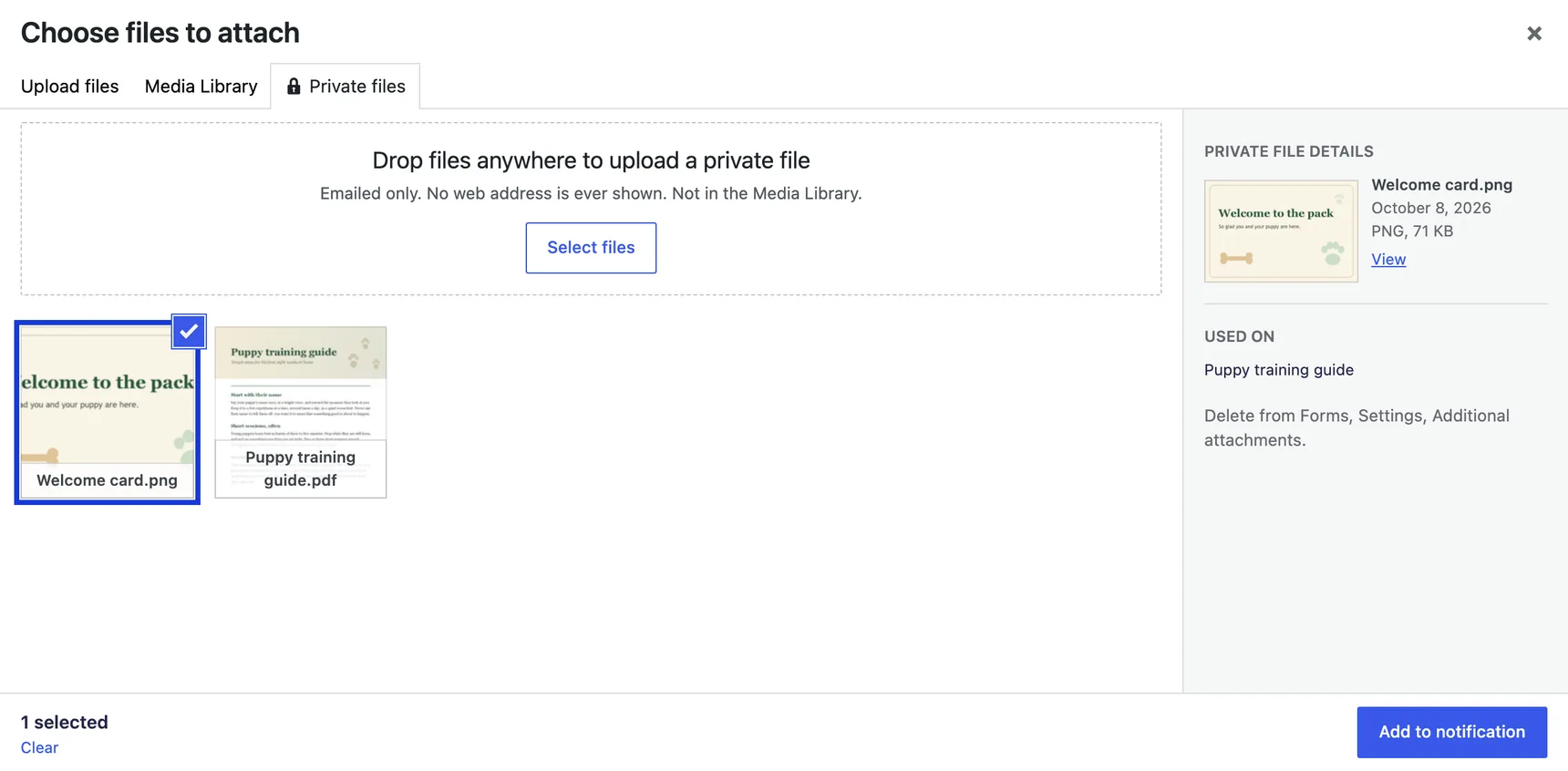
- Open the Private files tab (it has a lock beside its name), next to Upload files and Media Library.
- Drop files anywhere on the window, or press Select files and pick one or more. Each new file appears as the first tile, already selected.
- Click any other private files you want, or switch to the Media Library tab and pick files there too. Files picked in both tabs are added together.
- Press Add to page or Add to notification. The footer counts what is selected, and Clear empties the selection.
Any type your Media Library accepts can be uploaded, and WordPress checks each file the same way it checks a Media Library upload. Uploading needs the same permission as the Media Library. Dropping a file on the window uploads a private file only while the Private files tab is open. On the other two tabs a dropped file goes to the Media Library, as it always has.
The tab works like the Media Library tab. Each file is a tile with a preview and its name. Click a tile to select it, and click it again to deselect it. Hold Ctrl (Cmd on a Mac) to select or deselect without changing anything else, or Shift to select a run of tiles. The arrow keys move between tiles and Space selects.
The panel on the right shows the file you selected last. It has a larger preview, the real name, the upload date, the type and size ("PDF, 3.6 MB"), View, and Used on, which names each page and notification that uses the file, or says "Not used yet".
Previews
At upload the plugin makes a small preview. An image always gets one when the server has an image library. A PDF gets a preview of its first page when the server's ImageMagick can read PDFs, which needs Ghostscript, exactly as for PDFs in the Media Library. Otherwise the tile and the row show a type icon. A preview is as private as its file. It sits beside the file in the same folder, under its own random name. The plugin only ever shows it through View and never gives out its address.
In the lists
The page box and a notification's static list show one row per file: the preview, the real name, a pill under the name saying Private (with a lock) or Media Library, then View and Remove.
Remove takes the file off that page or that notification and nothing else. The file stays in the private files, ready to be added somewhere else.
View
View opens a private file in a new tab. The link goes to the plugin, never to the file. The plugin checks that you are signed in and can upload files, then shows the file under its real name. Anyone else is turned away with an error that names nothing. Types a browser would run as a page, such as HTML or SVG, are downloaded instead of shown.
The list on the settings tab
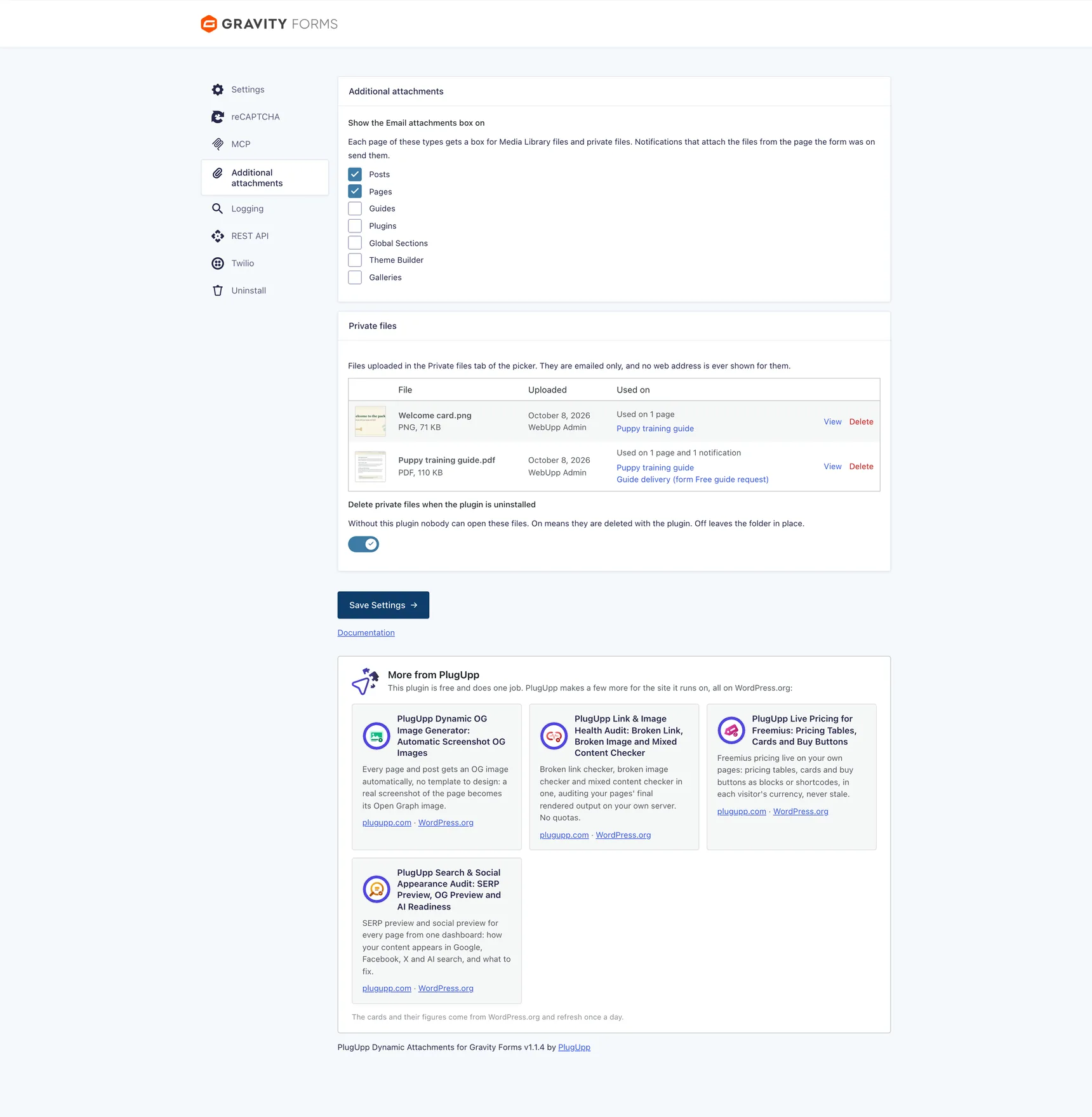
Go to Forms, Settings, Additional attachments. Below Show the Email attachments box on, Private files lists every private file with its preview, real name, type, size, upload date and uploader. Used on names each page (linked to its edit screen) and each notification (linked to its editor) that uses it.
Delete
Delete is only on the settings tab. It asks once, saying where the file is used, for example "This file is used on 2 pages and 1 notification. Deleting it removes it from all of them." If you go ahead, the plugin removes the file, its preview and its folder from the server, takes it off every page and every notification, and writes one line to its log with the file's real name.
A notification whose static list is left empty, with Static attachments on, is held back until you add a file. A page whose box is left empty is held back the same way. See Failure diagnostics.
Uninstalling
Delete private files when the plugin is uninstalled is a switch on the same tab, and it is on until you turn it off. Without the plugin nothing on the site can open or send these files, so they are deleted with it. Keep your own copies of the originals.
Turn the switch off and save if you plan to install the plugin again later. Then deleting the plugin leaves the folder in place, each file in a folder of its own, without the plugin's table. The plugin's panel on Forms, Settings, Uninstall names that folder.
While the plugin is inactive it cannot hold a notification back, so Gravity Forms sends it without the additional attachments. Turn those notifications off, or change them, before you uninstall or deactivate the plugin. The plugin's panel on Forms, Settings, Uninstall says this too.