The pricing card
A pricing card is a box with a plan's name, its price, its description, its features and a buy button in it. The Freemius pricing card block is that box, and everything in it is live: change a price, a plan name or a feature in the Freemius dashboard and the card follows, with no visit to the editor.
The quickest way to one
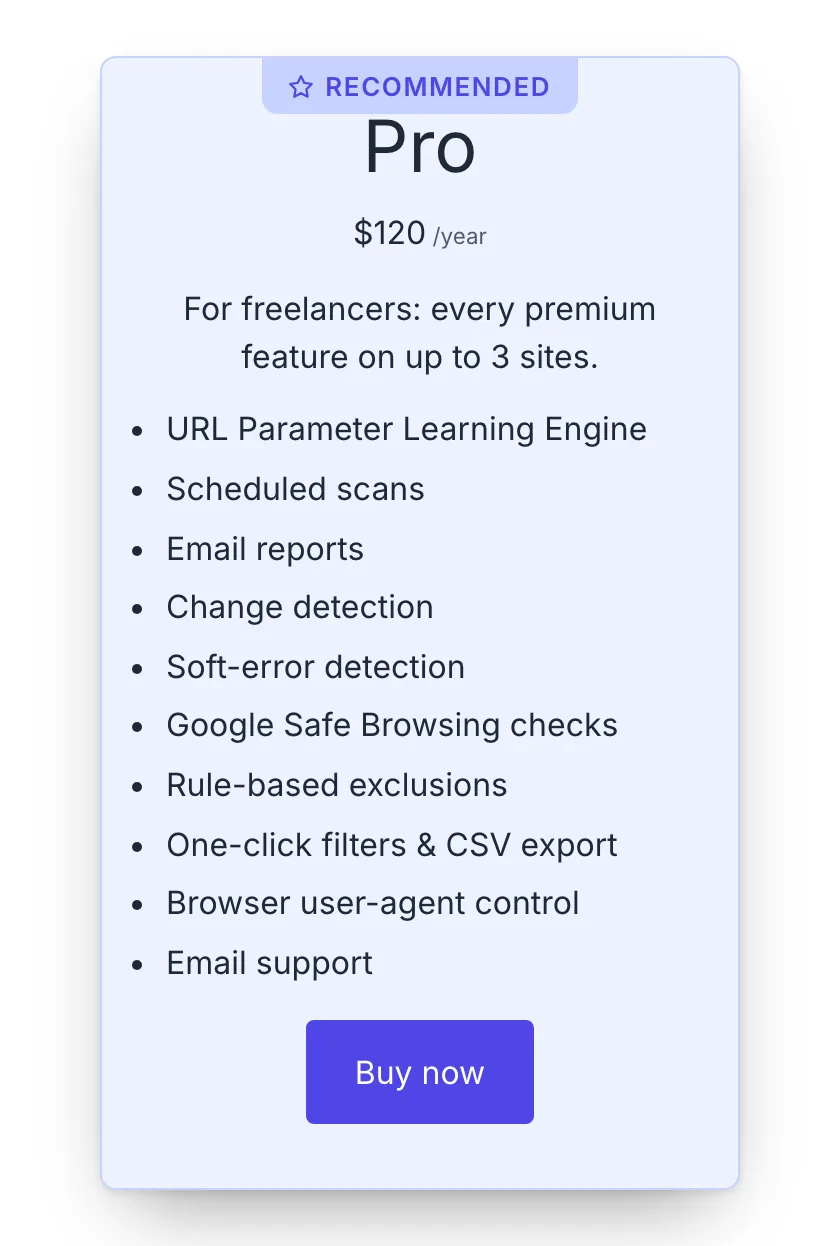
Open the inserter, search for Freemius pricing card and insert it. It arrives holding five blocks, each of them still an ordinary block you can move, restyle or delete:
- Freemius plan text, the plan's title
- Freemius price, with the text after the figure turned on
- Freemius plan text again, the plan's description
- Freemius plan features, the list Freemius holds against the plan
- Freemius buy button, at full width
The inserter's Patterns tab has the same thing under Freemius as Freemius pricing card, already sized to 320px and centred. Use whichever you prefer: the pattern is the block with a width and a border already set.
Set the card's plan once, on the card, and every block inside it follows. For a row of cards, put the cards in a core Columns or Grid block and give each card its plan. Laying out several cards side by side is WordPress's job and it is already good at it.
If your pages are built with Elementor, Bricks, Divi or the classic editor rather than blocks, the Shortcode builder writes the same card for you as a shortcode: see The shortcode below.
The card sets the plan
Select the card and the Settings tab has What this card is about: a Product, a Plan and a Licence tier. Whatever you choose there, every block inside the card uses, so a three-card pricing row is three choices rather than fifteen.
A card you have just inserted fills its own Plan in for you, with the plan the product would have fallen back to anyway, so the sidebar says "Pro" rather than "Default". Nothing already on the page is touched: a card that was saved with no plan still means "the headline plan", whatever that becomes.
Each of those is still optional, and each still defaults on its own: clear the
plan again and the card is about your headline plan, exactly as a bare
[pflp_price] is.
The card's Plan list offers every plan, your free one included: a free tier has a name, a description and features like any other, so a card of those three with an ordinary download button is the free column of a pricing table. It is the price and the buy button that are offered only plans with a price, because those have a figure to find.
A block inside the card that names a plan of its own keeps it. The order is always the same, and it is the same for a shortcode as for a block:
- what the block or shortcode says itself,
- what the card around it says,
- your site's defaults.
So a card can hold one price pinned to a different tier, or a "compare with" line naming another plan, without the rest of the card noticing. A block outside a card behaves exactly as it always has, which is why nothing you published before this release moves.
The billing cycle and the currency are deliberately not inherited. Those belong to the visitor and their toggles, and a card that pinned one would be a card the toggle could not move.
A card can also hold a Freemius release line or a Freemius money-back guarantee, and both follow the card's product. The pattern does not include either, so cards you already have look exactly as they did; add them from the inserter where you want them. See The release line and The money-back guarantee.
What you can change, and where
Select the card itself, not the blocks inside it, and the sidebar has:
| Where | What |
|---|---|
| Settings tab, Card | Width in pixels, the widest the card may be. Empty means it fills whatever it sits in. Position: where a card narrower than the space around it sits, left, centre or right |
| Styles tab | Colour and Background, Dimensions (padding, margin, the space between the things inside it, and a minimum height), and the border settings (colour, width, style, radius) with the shadow |
| Toolbar | WordPress's own Wide and Full width, which say how much of the page the card may use. That is a different question from Position, which moves a narrow card inside the space it already has |
| Advanced | Additional CSS class(es) and an HTML anchor, so a "see the plans" link can point at the card |
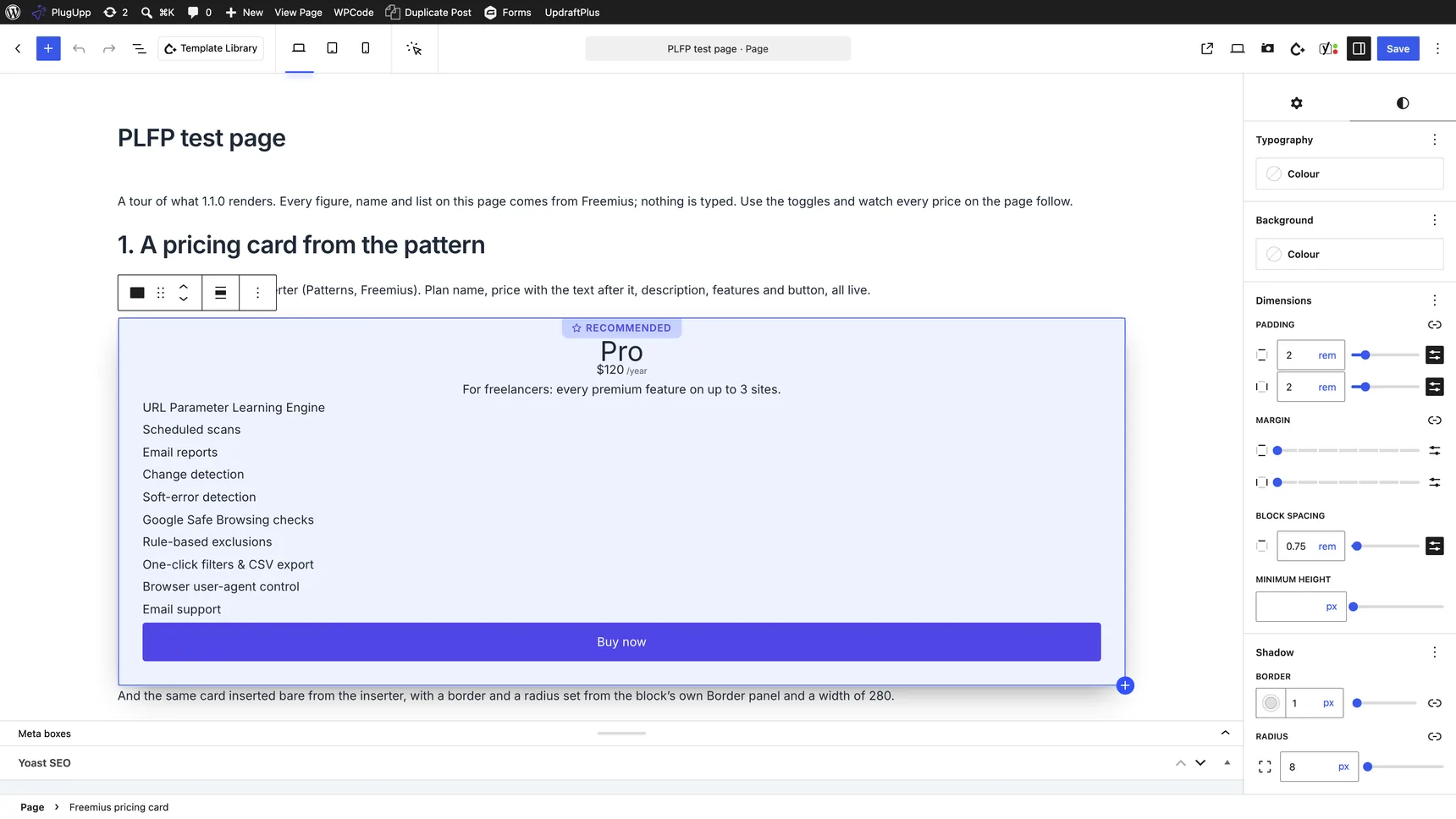
Every one of those panels is there on every theme. WordPress keeps borders, padding, margin and block spacing switched off for every block unless the theme switches its appearance tools on, and most classic themes and some block themes never do; this block opts itself back in. On such a theme WordPress heads the border panel Shadow rather than Border & Shadow, because it reads the heading from the site-wide setting. The border settings are inside that panel all the same. Styling has the detail.
The featured plan
Freemius lets you mark one plan as the featured one in its dashboard. Until this release that flag decided only which plan a bare price fell back to. Now it marks the card as well.
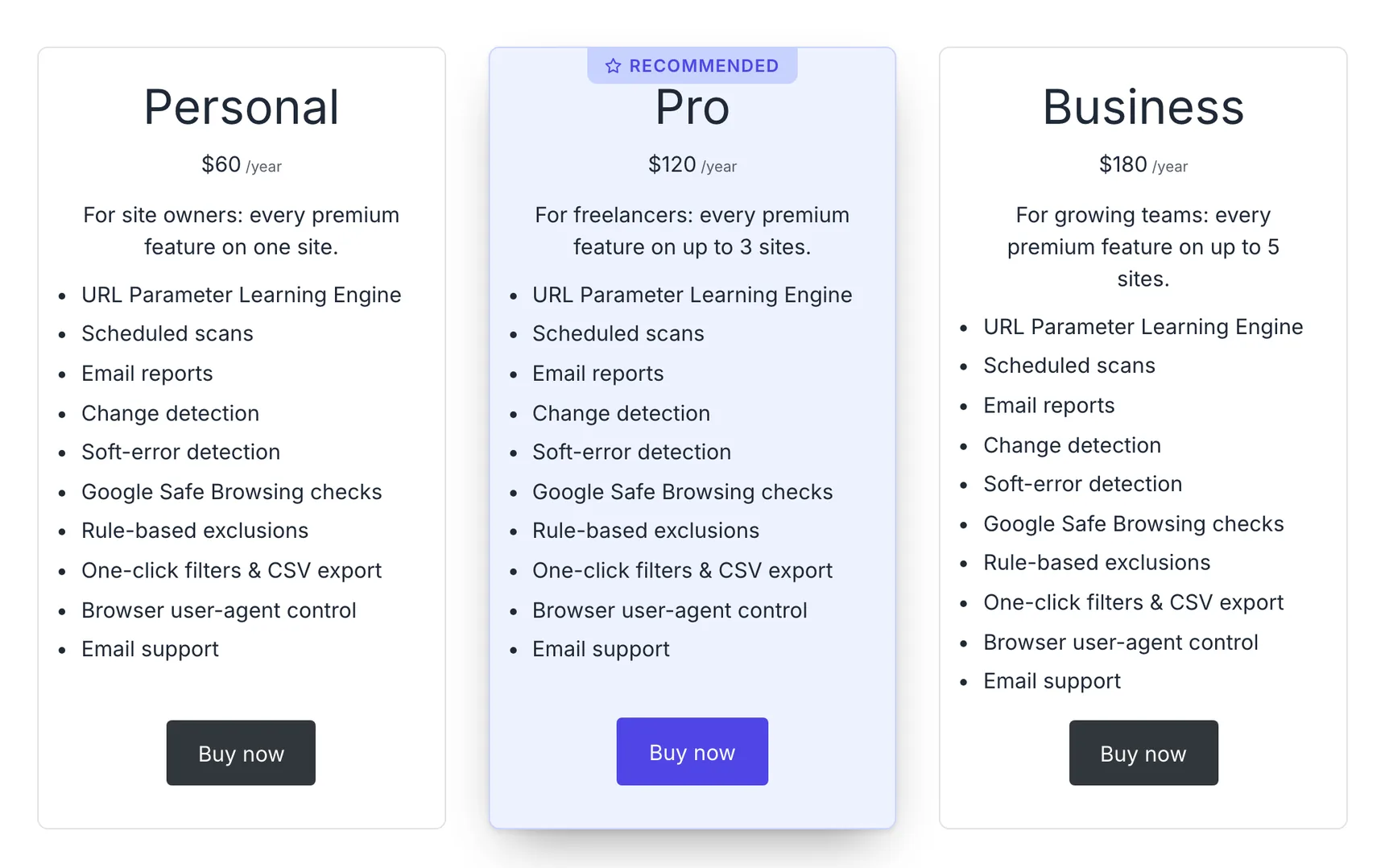
A card's Featured setting, in the same What this card is about panel, has three answers:
| Setting | What it does |
|---|---|
| Automatic: follow Freemius | The default. The card marks itself when its plan is the one you feature in the Freemius dashboard, and the product sells more than one paid plan |
| Always highlight this card | Marks it whatever Freemius says, which is what you want for a licence tier or a plan the dashboard has no flag for |
| Never highlight this card | Leaves it plain, even when Freemius features its plan |
The "more than one paid plan" part is Freemius's own rule, and its own pricing page follows it: one paid plan beside a free tier is not a choice between plans, so calling it the popular one tells a reader nothing. A plan with no price at all is not counted, so a free tier never makes the difference.
The editor says which of the three it has decided and why, under the setting, so you never have to guess whether a card is going to light up.
How a featured card looks
Once, on the Featured plan tab under Freemius Pricing → Settings, and every featured card on the site follows it. Beside the fields is a real pricing card at the size one renders at, drawn with the front end's own stylesheet, and it redraws as you type: you never have to save to see it, and what you are looking at is the card rather than a picture of one. It stays with you as you scroll.
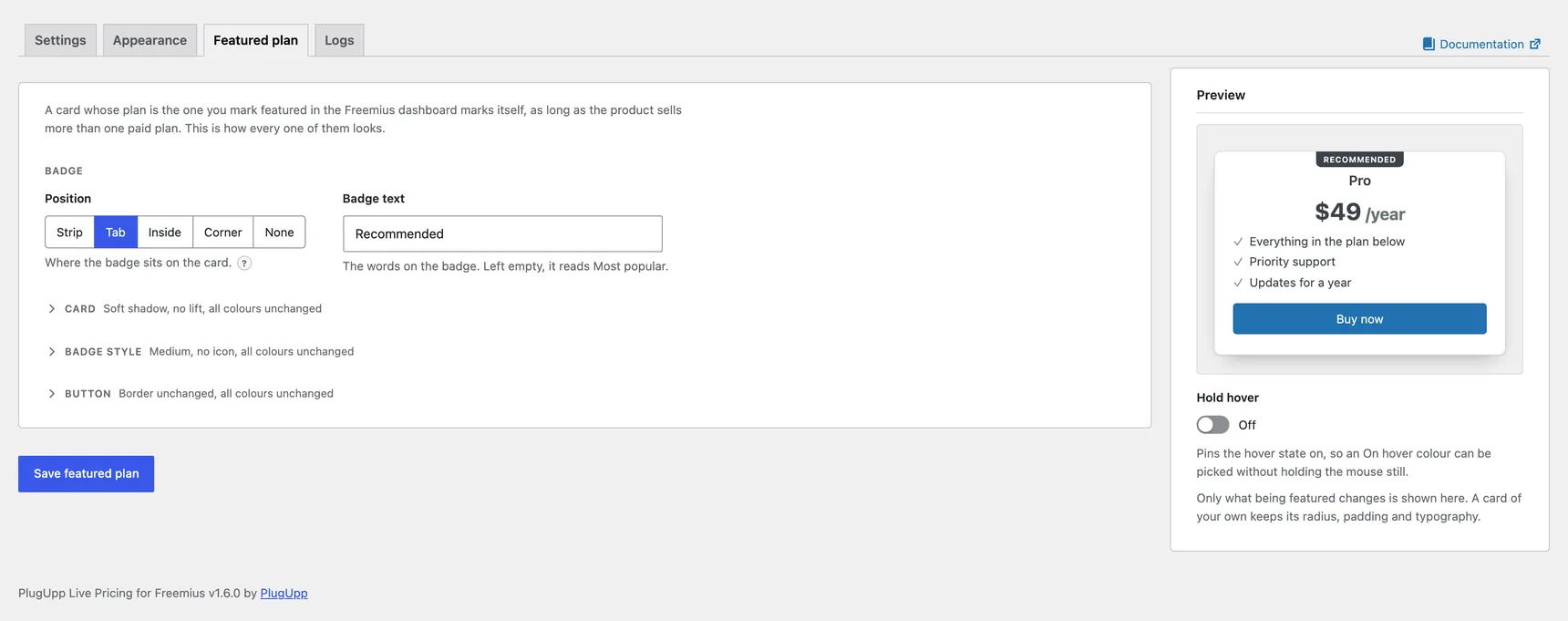
The settings are in three groups, one control per row.
Card
| Setting | What it sets |
|---|---|
| Border colour | The colour the featured card takes in place of its own |
| Border width | In pixels |
| Background | The colour the featured card is filled with |
| Shadow | Unchanged, none, soft or strong |
| Shadow colour | The colour that shadow is drawn in. Empty is the neutral black; the preset keeps the depth and the softness |
| Lift | Raises the featured card a little above the ones beside it |
Badge
| Setting | What it sets |
|---|---|
| Position | Strip across the top edge, Tab hanging from the top edge inside the border, Inside above the plan name, Corner at the top right, or None for no badge at all |
| Badge text | The words on the badge. Left empty it reads Most popular |
| Size | Small, medium or large. Medium is the size a badge has always been; large is about 13px on a card set in 16px type |
| Icon | A small shape before the words: star, sparkles, bolt, crown, award, trophy, heart, flame or tick, or no icon at all. It is drawn in the badge text colour and sized with the words, so it follows whatever you set above |
| Background | The colour the badge is filled with |
| Text colour | The colour of the words on it |
Button
One row, Colours, holding six colour pickers: the buy button's text, border and background, each at rest and under the pointer. They apply to the buy button inside a featured card and to no other button on the site. The colour on hover applies on a touch screen too, where the site-wide lift and shadow under Buttons do not.
Every colour is WordPress's own colour picker, the one you already use elsewhere on your site, and its Clear button is how you empty a field.
Leave a colour empty and being featured does not change it. The card keeps the border, background and button colours it already has, so a featured card is the card you designed with a badge on it, and you paint only what you choose to paint. Border width left empty keeps the width the card was given; Shadow set to Unchanged keeps the shadow it was given, where None takes a shadow away. Shadow colour left empty is the neutral black, and while Shadow is Unchanged or None there is no shadow of the plugin's to colour.
The badge is the one exception, because it appears only on a featured card and so has no colour of its own to keep. Left empty it is filled with the card's text colour and its words take the card's background, which reads as inverted text and matches any site. Set the two colours to choose your own.
Only the border, the background, the shadow and the buy button's colours are taken over from the card. Its radius, its padding, its width and its typography stay the card's own, because those are what the card is rather than what being featured means.
Every card, under the pointer
Three settings under Cards on the Appearance tab move every pricing card on the site, featured or not, while the pointer is on it:
- Hover lift - how far it rises, 0 to 6 pixels. 0 is none. A card already raised for being featured rises further rather than dropping back to this distance.
- Hover shadow - none, soft or strong. A featured card keeps its own shadow at rest and takes this one under the pointer.
- Shadow colour - the colour that shadow is drawn in. The preset keeps its depth and its softness and only the colour changes, so a brand tint reads as light falling on the page rather than as a second border. Empty is the neutral black it has always been, and with the shadow on None there is nothing to colour.
The lift and the shadow apply on screens 1025px and wider only, so a tapped card on a phone is never left lifted. Off to start with, so nothing moves until you ask it to.
One product at a time
A product's own screen carries the same three groups on its own Featured plan tab, beside the Product tab, behind one switch: Override the site-wide styling. Off, the settings show the site values, greyed out, which is the answer that product is using, and the preview beside them says Site-wide style, from Settings. Turn it on and the same settings become that product's, starting from what the site says.
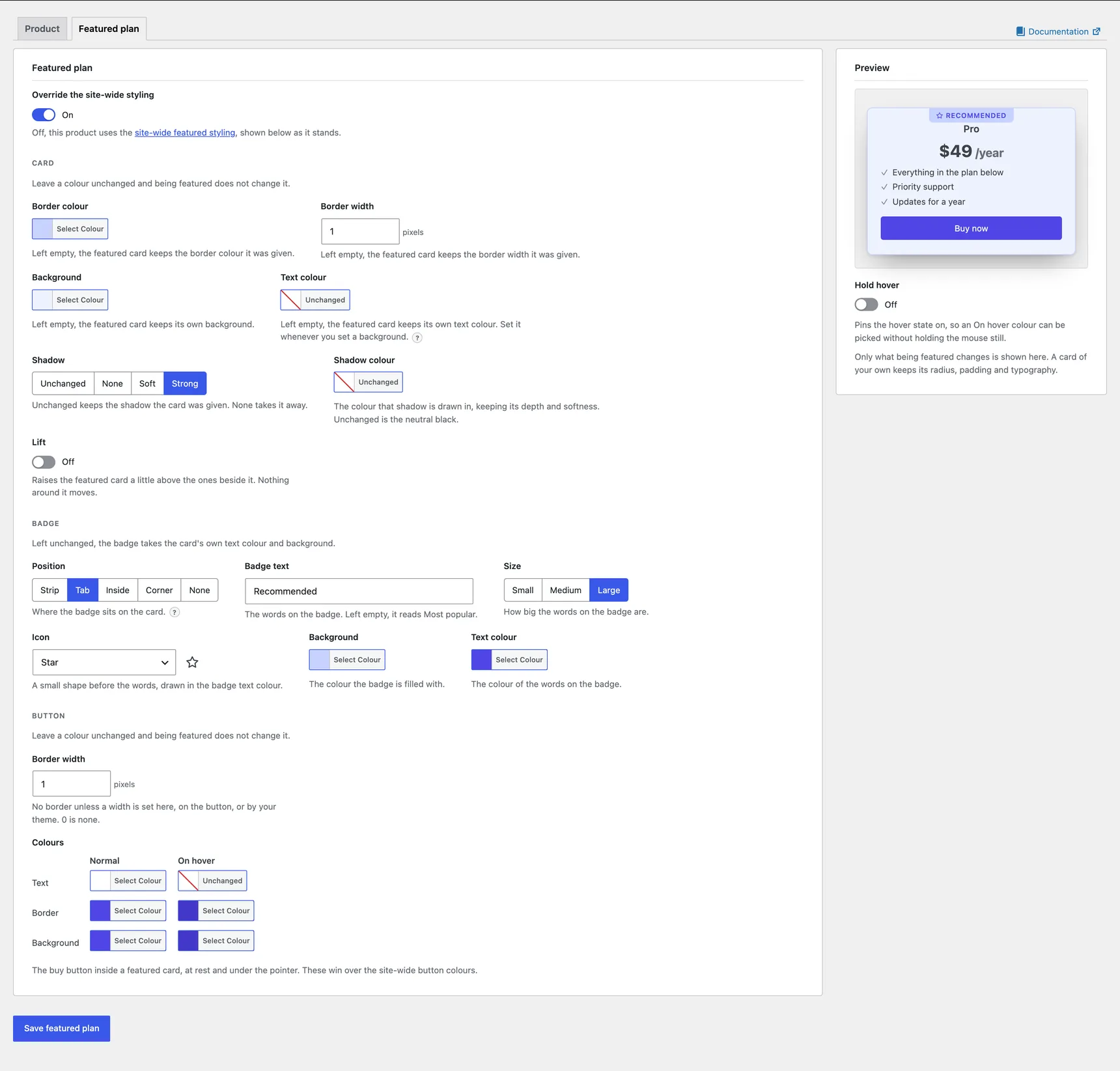
It has its own Save featured plan button, separate from the Product tab's Save product, because saving a product refetches its prices from Freemius and a badge colour has no reason to. The override is stored with the product, so deleting the product deletes it too.
The shortcode
[pflp_card] takes the same four attributes:
[pflp_card product="12345" plan="pro" licenses="3" featured="auto"]
  [pflp_plan]
  [pflp_price suffix="auto"]
  [pflp_button width="100"]
[/pflp_card]
featured is auto, yes or no, and means what the three settings above
mean. Everything between the tags inherits the card's product, plan and licence
tier the same way a block does.
How the blocks inside a card line up
A plan name, a price, a features list and a toggle are inline by default, because outside a card they belong in a sentence: "from $49 a year". Inside a card they are the rows of the card, so a card's own blocks each take a line of their own with no alignment set on any of them. Drop a plan name above a price and they stack, which is what a pricing card looks like everywhere.
Setting Left, Centre or Right on one still decides where it sits on that line, exactly as before. And nothing outside a card changes: a price in a paragraph is still part of the sentence, wherever that paragraph is.
What the card does not do
- It is not a pricing table. Several cards side by side are a core Columns or Grid block, which already knows about gaps, stacking on a phone and equal heights.
- It does not bring its own palette or fonts. The colours and font sizes offered are your theme's, so a card looks like the rest of your site rather than like this plugin.
- It holds anything, not only our blocks. A heading, an image, a note about VAT: it is an ordinary container.
Two things about the row around it, on a theme that leaves WordPress's appearance tools off (most classic themes and some block themes):
- A core Group or Columns block renders no block spacing there, although the editor shows the control and the gap in the canvas. WordPress reads that spacing from the site-wide setting, which such a theme leaves empty. Give the block above a bottom margin instead. The card itself is unaffected: it writes its own spacing, so Block spacing on a Freemius pricing card works on every theme.
- A custom shadow typed with
rgba()is stripped by WordPress's CSS sanitiser and never reaches the page. Write the transparency as an eight-digit hex:0 18px 50px -24px #0f172a1f.
The shortcode
[pflp_card] is the same box for a page builder, a widget or a template file.
It is an enclosing shortcode, so it wraps what it holds:
[pflp_card border_color="#e0e0e0" border_width="1" radius="8" padding="2rem" width="320" align="center" gap="12"]
  [pflp_plan]
  [pflp_price suffix="auto"]
  [pflp_plan field="description"]
  [pflp_features]
  [pflp_button width="100"]
[/pflp_card]
Where the block has panels, the shortcode has attributes, and they are the same
seven things: a border colour and width, a radius, padding, a background, a text
colour and a width, plus shadow="soft" for a ready-made shadow and gap for
the space between the things inside. Lengths are a whole number of pixels or a
decimal number of rem; colours are a hex value or a CSS custom property. A
value it cannot read is dropped rather than guessed at, so a typo can never put
a broken declaration into your page. Every attribute is on the
Reference page.
A card with no attributes at all is a transparent box with no border and no padding, unless you have filled in Card defaults under Cards on the Appearance tab, in which case it is the box you described there. That is deliberate either way: the card adds a box, and whether the box is visible is your decision, once for the site or once for the card. Styling has the Card defaults and the order they resolve in.
Let the builder write it
You do not have to type any of that. Open the product on Freemius Pricing, Products, find the Shortcode builder, and choose Pricing card as the element. Pick the plan and the licence tier, and the box gives you the whole card:
[pflp_card product="12345" plan="pro" licenses="3"]
[pflp_plan]
[pflp_price suffix="auto"]
[pflp_features]
[pflp_button]
[/pflp_card]
Copy it and paste it into a page builder's shortcode widget or a classic editor. It is six lines and a shortcode widget takes them as they are.
Two things about that stack are worth knowing, because they are what make it work:
- Nothing inside names a product, a plan or a licence tier. Everything in a card follows the card, so changing the plan means changing the first line.
- Nothing names a billing cycle, and the builder will not let you add one. A cycle fixes the price, and the billing cycle toggle on the page would then leave that card behind while every other figure moved. The card follows the toggle instead.
The second row of the builder carries whatever named choices the element has. For a card that is Featured, which forces the card to stand out or forces it not to, and Button style, which makes the buy button inside it Outline instead of Fill. For a price it is the format and the text after the figure, for a button its style and width, for a toggle its look, and so on. Anything left on its default is left out of the shortcode, and the sentence under the box says what you will get.
One card is one card. A row of three is layout, which a shortcode cannot express: put each card in its own column of your page builder.
Styling it from your own CSS
The card carries the class pflp-card, plus is-shadow-soft when a shadow was
asked for, has-border-color when a border was, and is-align-center and its
two neighbours when a position was. A featured card adds is-featured, one of
is-badge-top, is-badge-tab, is-badge-inside and is-badge-corner, plus
is-badge-size-small, -medium or -large, is-lifted where the
lift is on, and a class per thing the featured style has an opinion about
(has-featured-border, has-featured-border-width, has-featured-background,
has-featured-button-background and its five siblings, and
is-featured-shadow-soft or its two neighbours). The badge itself is a
span.pflp-card-badge inside the card, and takes its two colours from
--pflp-badge-background and --pflp-badge-color. The shortcode's values are written as
custom properties on the card rather than as rules, so your own CSS can set them
anywhere and win:
.pflp-card {
  --pflp-card-border-color: #e0e0e0;
  --pflp-card-radius: 12px;
  --pflp-card-padding: 2rem;
  --pflp-card-gap: 0.75rem;
}
Pages you already published
Nothing you set moves. A block that names a plan keeps it, inside a card or outside one, and a card with a plan of its own is untouched.
One thing does become visible: a card that names no plan at all is about your headline plan, and if that is the plan you feature in Freemius the card now marks itself. That is the feature working, and if you would rather it did not, set that card's Featured to Never highlight this card.
The pattern is unchanged. The pricing card pattern used to insert a plain group with a border on it, and pages carrying that group still render exactly as they did: a pattern is copied into the page when you insert it, so yours is yours. The difference is only for cards inserted from now on, which you can style from the editor instead of from CSS.