Styling
Every panel described here appears on the plugin's blocks, the pricing card included, whatever your theme. WordPress keeps borders, padding, margin and the space between blocks switched off for every block unless the theme switches its appearance tools on, and most classic themes and some block themes never do; these blocks opt themselves back in.
Three things to know on such a theme:
- WordPress heads the border panel Shadow instead of Border & Shadow, because it reads the heading from the site-wide setting. The border settings (colour, width, style, radius) are inside that panel all the same.
- A core Group or Columns block renders no block spacing at all, although the editor shows the control and shows the gap in the canvas. The setting is read from the site-wide one, which such a theme leaves empty, so nothing is written into the page. If you are spacing a row of cards or the sections of a pricing page with a Group, give the block above a bottom margin instead. The plugin's own card is not affected: it writes its own spacing, so Block spacing on a Freemius pricing card works on every theme.
- A custom shadow typed with
rgba()never reaches the page. WordPress's CSS sanitiser strips it. Write the transparency as an eight-digit hex instead:0 18px 50px -24px #0f172a1frather than0 18px 50px -24px rgba(15, 23, 42, 0.12).
Everything this plugin renders can be styled from the block editor's own panels, or from your CSS against the classes below, or both.
Which panels each block has
| Block | Colour | Typography | Spacing | Border | Shadow | Also |
|---|---|---|---|---|---|---|
| Freemius pricing card | yes | yes, and the space between the blocks inside it | yes | yes | Product, Plan, Licence tier, Featured, Width, Position, a minimum height, Wide and Full | |
| Freemius price | yes | yes | yes | yes | yes | Style, Text after the price |
| Freemius buy button | yes | yes | yes | yes | yes | Styles, Label, Width, HTML anchor |
| Freemius plan text | yes | yes | yes | yes | yes | Field, Fallback text |
| Freemius plan features | yes | yes | yes | Show descriptions | ||
| Freemius currency toggle | yes | yes | yes | yes | yes | Styles, Active option, Size and spacing |
| Freemius billing cycle toggle | yes | yes | yes | yes | yes | the same, plus Cycle shown first, Labels and Saving badge |
| Freemius release | yes | yes | yes | yes | yes | Show, Separator, Date format |
| Freemius money-back | yes | yes | yes | yes | yes | Text |
Colour is text and background; typography is the full set, size, family, weight, style, line height, letter spacing, transform and decoration; spacing is padding and margin, and on the card the space between the blocks inside it as well. The card has no typography panel of its own, because a box has no words: the blocks inside it each have the full set.
The Advanced panel's Additional CSS class(es) is the block spelling of a
shortcode's class, and its HTML anchor is the button's and the card's
id. Classes are
added to the ones an element already carries, never replacing them.
Block styles
Both toggles have a Styles panel offering pills, buttons, tabs, text
and switch. Each one writes a class, is-style-pills and so on, which is what
a shortcode's style="pills" writes too, so the same CSS serves both. What each
looks like is on Toggles.
The buy button has one too, offering Fill and Outline, the same two the
core Buttons block offers and under the same two class names. The class goes on
the wrapper, <span class="wp-block-button pflp-button-wrap is-style-outline">,
which is where WordPress puts it on its own button, so a theme that styles an
outline button styles this one. style="outline" on the shortcode writes the
same class. Fill is the default and draws nothing of its own, so a page
published before this setting existed renders exactly as it did.
Alongside them, Active text and Active background set the colour of the chosen option, Gap the space between the options, and Size small, regular or large. The three are written as CSS custom properties on the toggle rather than as rules, so your own CSS can set them anywhere and win:
.pflp-cycle {
  --pflp-active-color: #fff;
  --pflp-active-background: #4f46e5;
  --pflp-gap: 6px;
}
The classes every element carries
| Element | Classes |
|---|---|
| Price | pflp-price, plus is-unavailable while the tier does not sell the cycle on show |
| Text after a price | pflp-price-suffix |
| A price with no row behind it | pflp-price pflp-price-missing |
| Buy button | a <span class="wp-block-button pflp-button-wrap"> round <a class="wp-block-button__link wp-element-button pflp-button">, plus is-unavailable on the link while it cannot sell, plus is-style-outline and has-custom-width with wp-block-button__width-100 on the WRAPPER when a style or a width is set |
| Plan text | pflp-plan |
| Release line | pflp-release, each part pflp-release-version, pflp-release-requires, pflp-release-tested or pflp-release-date, and between them pflp-release-separator |
| Money-back guarantee | pflp-moneyback |
| Features list | pflp-features, each item pflp-feature, with pflp-feature-title and pflp-feature-description inside |
| Currency toggle | pflp-currency, each option pflp-currency-button, the chosen one is-active |
| Billing cycle toggle | pflp-cycle, each option pflp-cycle-button, the chosen one is-active, the saving pflp-cycle-badge |
| Either toggle's style and size | is-style-pills and is-size-large, and the rest of the two lists |
| Pricing card | pflp-card, plus is-shadow-soft, has-border-color, has-block-gap and is-align-center and its two neighbours, as they are asked for |
| A featured pricing card | the above, plus is-featured, one of is-badge-top, is-badge-tab, is-badge-inside and is-badge-corner, is-lifted, and a class per thing the featured style sets: has-featured-border, has-featured-border-width, has-featured-background, has-featured-color, has-featured-button-color, has-featured-button-color-hover, has-featured-button-border, has-featured-button-border-hover, has-featured-button-background, has-featured-button-background-hover, and is-featured-shadow-soft or one of its two neighbours |
| The badge on a featured card | pflp-card-badge |
| Anything given an alignment | wrapped in <div class="pflp-align pflp-align-center">, except the card, which is a box and takes its position as a margin on itself |
The alignment wrapper is a block around an inline element, which is the only way to move one across the line. Whatever classes, id and inline styling you set stay on the price, button or toggle inside it.
The card's custom properties
The pricing card's shortcode writes its look as custom properties on the card rather than as rules, the same contract the toggles have, so your own CSS can set any of them on the card or on any ancestor:
.pflp-card {
  --pflp-card-border-color: #e0e0e0;
  --pflp-card-border-width: 1px;
  --pflp-card-radius: 12px;
  --pflp-card-padding: 2rem;
  --pflp-card-background: #fff;
  --pflp-card-color: #111;
  --pflp-card-gap: 0.75rem;
}
--pflp-card-width is no longer one of them. A card now sets a maximum
width only when you have chosen one, in the block's Width field or the
shortcode's width attribute, and the plugin writes that straight onto the
card. A card with no width set says nothing at all about its maximum, so your
theme's own content width applies to it exactly as it applies to a core Group
in the same place. Setting --pflp-card-width yourself no longer does
anything: on a card with no width nothing reads it, and on a card with a width
the card's own value is already there.
To make a card narrower, set its Width. To cap one from your own CSS, set
max-width on .pflp-card and mark it !important, because the width you
chose in the editor is written onto the element itself:
.my-pricing .pflp-card { max-width: 280px !important; }
A featured card writes up to twelve more, and they are the only ones that override the card's own panels rather than falling in behind them:
.pflp-card.is-featured {
  --pflp-featured-border-color: #4f46e5;
  --pflp-featured-border-width: 2px;
  --pflp-featured-background: #fff;
  --pflp-featured-color: #111;
  --pflp-badge-background: #4f46e5;
  --pflp-badge-color: #fff;
  --pflp-featured-button-color: #fff;
  --pflp-featured-button-color-hover: #fff;
  --pflp-featured-button-border: #4f46e5;
  --pflp-featured-button-border-hover: #3730a3;
  --pflp-featured-button-background: #4f46e5;
  --pflp-featured-button-background-hover: #3730a3;
}
The badge carries two more classes of its own on the card:
is-badge-size-small, -medium or -large for its size, beside
is-badge-top, is-badge-tab, is-badge-inside or is-badge-corner for
where it sits. An icon, where one was chosen, is an inline SVG with the class
pflp-card-badge-icon, one em square and stroked in currentColor, inside
the badge's own text span so it takes the badge text colour.
The rules that read them are marked !important, and deliberately: a card's
own border colour, background and shadow, and a button's own colours, arrive
as inline styles from their panels, and as !important classes when they are
theme presets, so nothing quieter would win. Every one of them fires only
where the featured style actually set the value, so a field left empty leaves
the card's own exactly where it was. The pricing card has
the settings behind them.
The space between the blocks inside a card is worth one note. WordPress normally writes that spacing itself, but only on a theme that has switched its appearance tools on; on every other theme the control was there and nothing came of it. The card therefore applies its own, so Block spacing does the same thing on every theme. The pricing card has the rest.
Pricing cards across the whole site
Card defaults
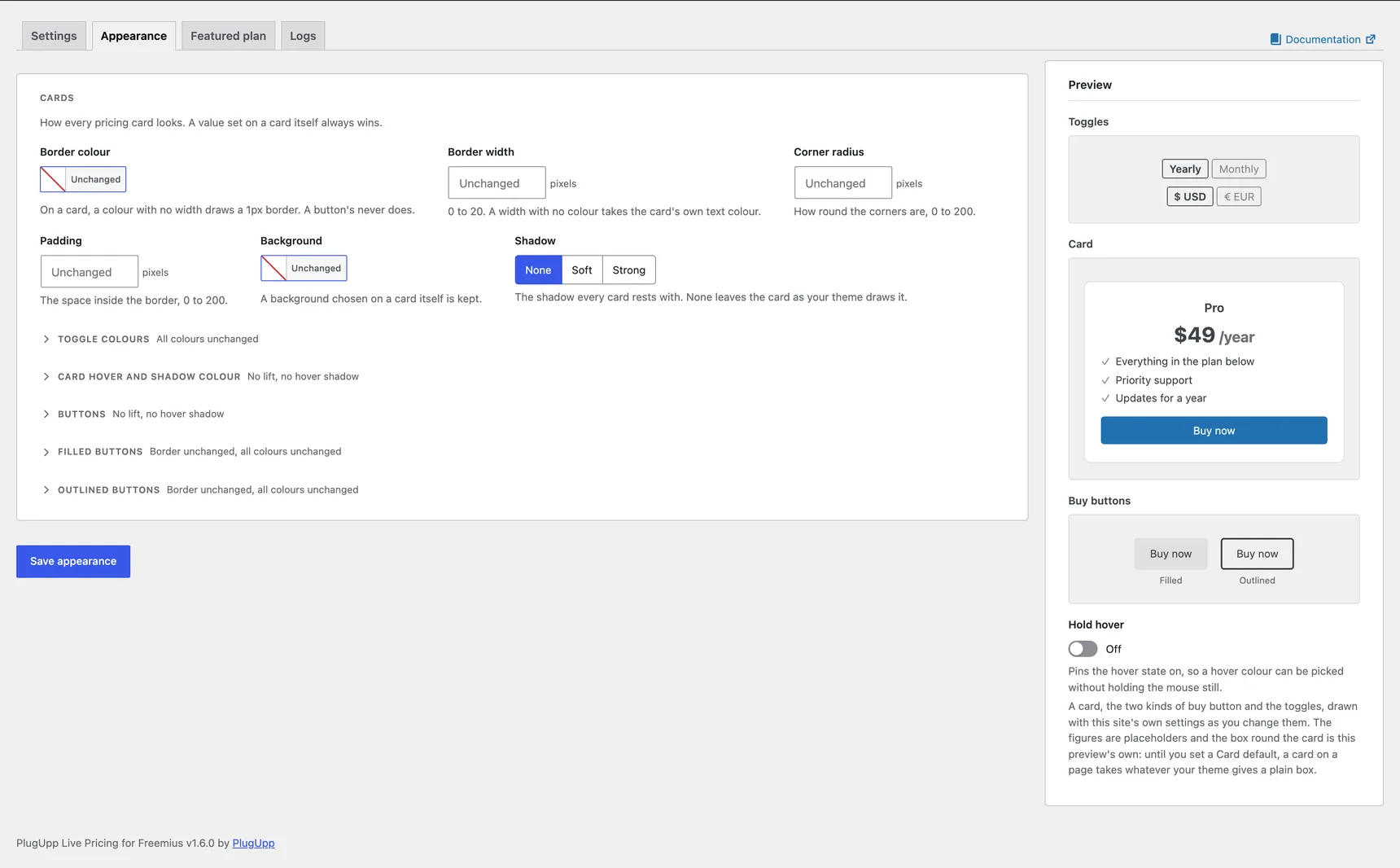
Card defaults, under Cards on the Appearance tab of Freemius Pricing, Settings, is what every pricing card on the site looks like standing still:
- Border colour and Border width - the card's border. Set a colour and leave the width empty and the border is 1px; set a width and leave the colour empty and the border takes the card's own text colour, which is what a shortcode does with the same pair.
- Corner radius - how round the corners are, 0 to 200 pixels.
- Padding - the space between the border and what is inside, 0 to 200 pixels.
- Background - the colour behind the card.
- Shadow - None, Soft or Strong, drawn in the Shadow colour below it.
What your site starts with depends on how it got here.
- A site that installed this plugin new starts with the values the
Freemius pricing card pattern uses: a 1px
#e0e0e0border, a 16px corner radius and 2rem of padding, with no background and no shadow. That is so a card you write as a shortcode looks like a card you insert from the inserter, without you having to match them by hand. - A site that updated from an earlier version starts with every field empty, so nothing on it changed. Not one card moved when you updated.
Empty means unchanged. A card with nothing set here takes whatever your theme gives a plain box, which is exactly what it did before these fields existed. An empty length field says Theme's own in grey to remind you. Clear a field any time to hand that property back to your theme, and fill one to take it.
They are here rather than on every card for the reason the button settings are: a look you want on every card is one setting, not one setting repeated on every card, and a card you built last month takes a new default without being re-saved.
The values a new site starts with are read from the pattern itself, so if the pattern's card ever changes, what a new site starts with changes with it. An existing site is never re-seeded: once your site has settings, they are yours.
The Appearance tab previews all of it. Both toggles, a live card and two buy buttons, one filled and one outlined, sit beside the fields and follow every change you make, drawn with your own theme and your own settings, so you can see a border colour or a hover lift before you save it. Point at the card or at a button to see its hover, or turn on Hold hover to pin the hover on while you pick a colour. The figures are placeholders and no product is needed; the featured look has its own tab.
Which value wins
Three layers, weakest first:
- Your theme, where nothing is set. With every default empty, the plugin writes no card styling at all and your theme's plain box is what you see.
- Your Card defaults, for every card on the site.
- The card itself, always. A value set in a block's own Border, Colour or
Dimensions panel wins, and so does a shortcode attribute -
[pflp_card background="#ffffff"]keeps its white on a site whose default background is something else. A colour chosen from your theme's palette wins too, which is worth saying on its own: a palette colour is not written on the card the way a custom one is, and the plugin stands out of its way deliberately.
The card only wins property by property. A card that sets a background and nothing else keeps the site's default border, radius and padding.
Under the pointer
Three more settings, folded under Card hover and shadow colour below Cards, say what a card does when somebody points at it:
- Hover lift - how far a card rises under the pointer, in pixels, 0 to 6. 0 is none. A card already raised for being featured rises further rather than dropping back.
- Hover shadow - the shadow it takes under the pointer: None, Soft or Strong, the same three names a featured card and a buy button use. A featured card keeps its own shadow at rest and takes this one while the pointer is on it.
- Shadow colour - the colour a card's shadows are drawn in, both the resting Shadow above and the hover one. The preset keeps the depth and the softness of each layer and only the colour changes. Empty is the neutral black, and with both shadows on None there is nothing to colour. This one, the buy button's and a featured card's own are chosen separately, so a tint on one never travels to the others.
The lift and the shadow are here rather than in the editor because a block panel cannot express a hover state, and both apply on screens 1025px and wider only, so a touch screen never leaves a tapped card lifted.
What a card's own blocks do with their line
Inside a pricing card, a plan name, a price, a features list and a toggle that carry no alignment each take a line of their own. Outside a card they are inline, so a price still sits in a sentence. Setting Left, Centre or Right decides where on the line it goes, as it always did, and a price inside a paragraph inside a card is part of that paragraph either way.
Toggles across the whole site
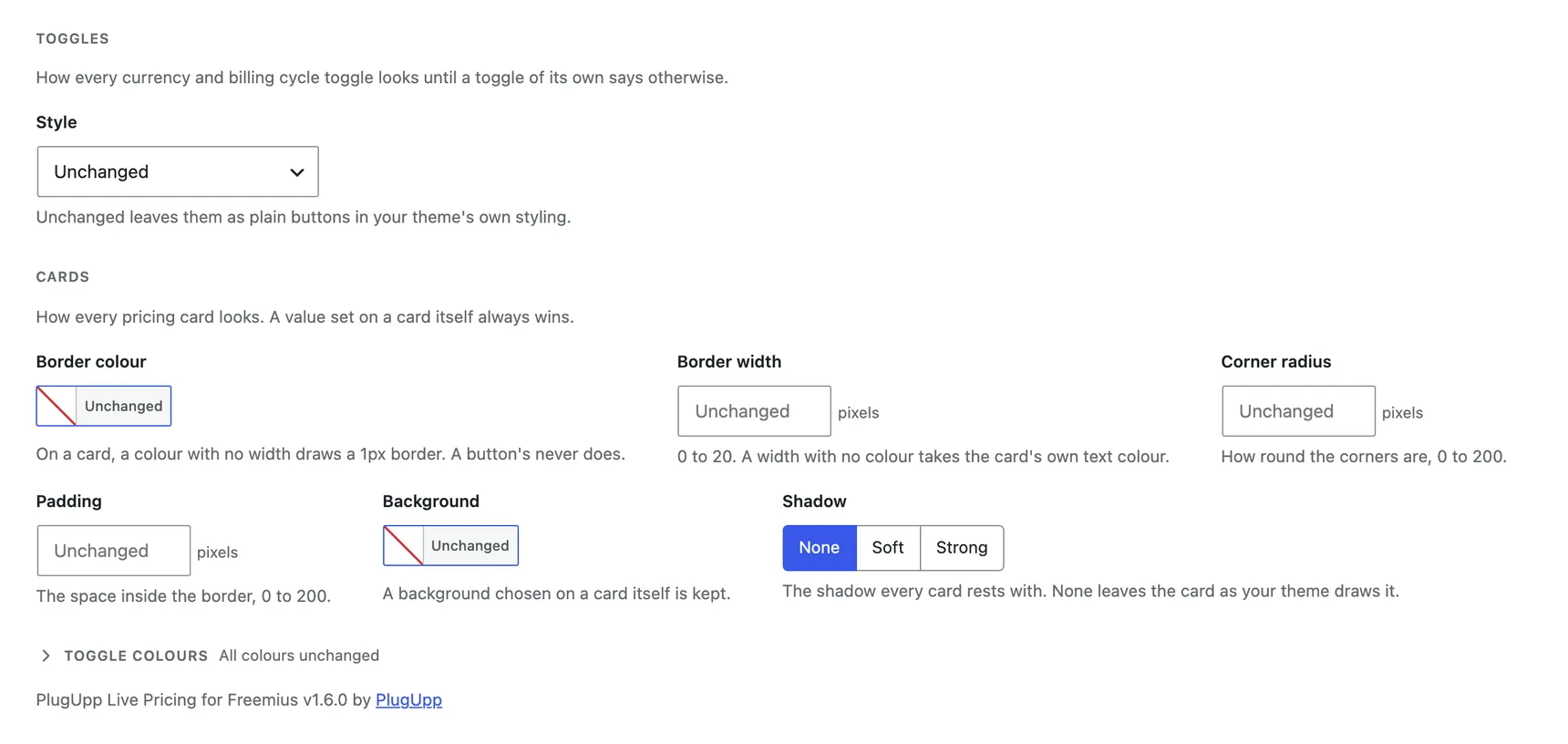
Three settings under Toggles on the Appearance tab apply to every currency and billing cycle toggle at once:
- Style - the look they take: Pills, Buttons, Tabs, Text or Switch. Unchanged leaves them as plain buttons your theme styles.
- Colours - a grid with a Normal column and an Active one, and Text and Background rows: the four values every style is drawn from, at rest and for the option a visitor is on. Leave one empty and the style's own stays.
The style is delivered as the same is-style- class a toggle gets when it
names one itself, so nothing new is added to the stylesheet for it. The Active
pair is the same --pflp-active-color and --pflp-active-background custom
properties a toggle already writes, which is why a toggle's own colour wins:
it writes the same thing on the toggle itself, and a value on the element
beats one from a stylesheet. The Normal pair is --pflp-normal-color and
--pflp-normal-background, and a toggle given a colour or a background in the
editor's own panel keeps those instead.
Size and Gap stay per toggle. They are layout, not look.
Buy buttons across the whole site
Three groups on the Appearance tab style every buy button at once. The words on them are the one button setting on the Settings tab: Button label, for every buy button without a label of its own. Buttons holds what both kinds share:
- Button classes - extra CSS classes for every button, space separated. A
classon one shortcode is added to these rather than replacing them. Most themes need nothing here, because a buy button is already built the way WordPress builds its own Button block and picks up your theme's button styling on its own. - Hover lift - how far every button rises under the pointer, in pixels, 0 to 6. 0 is none, and 1 is the house look.
- Hover shadow - the shadow it takes with it: None, Soft or Strong, the same two shadows a featured pricing card offers. Both are here rather than in the editor because the block panels cannot express a hover state, and both apply on screens 1025px and wider only, so a touch screen never leaves a tapped button lifted.
- Shadow colour - the colour that shadow is drawn in. The preset keeps the depth and the softness of each layer and only the colour changes, so a brand tint reads as light falling on the page rather than as a second border. Empty is the neutral black every shadow here had before, and with Hover shadow on None there is nothing to colour. A pricing card's hover shadow and a featured card's own shadow each have the same field, and all three are chosen separately.
Filled buttons and Outlined buttons are a group each, one for each kind of button, and each has the same two rows:
- Border width - how thick that kind's border is, 0 to 20 pixels. A filled button has no border unless you set a width; empty keeps your theme's, which for an outlined button is its 2px outline. 0 takes the border away.
- Colours - a grid of the Text, the Border and the Background that kind takes Normal and On hover. A button takes the grid for the kind it is and only that one, so a solid button and an outlined one can be coloured differently without either being given a class. Leave a colour empty and your theme's own stays.
A button shows a border only when it has a width: one you set here, one set in the block's own Border panel, or one your theme gives it. A Border colour never creates a width - it colours a border the button already has, and on a button with none it changes nothing you can see. Most themes give a filled button no border, so there a Border colour needs a Border width to show. There is no width On hover, because a border that grew or appeared under the pointer would make the button bigger and move the page, so the On hover Border colour paints the border the button already has.
An outlined button's Background is empty to start with, which is what makes it outlined; set one and it is a real background, a tint at rest or a fill under the pointer. Its border follows its Text colour until you give it one of its own.
An outlined button takes your theme's outline style wherever your theme's rule can reach it, the same as WordPress's own outlined Button block does. The plugin's 2px border and its padding are only what an outlined button falls back on, and they are WordPress's own values, so on a theme that styles no outline it still looks like a core outlined button. Some themes keep their outline style for buttons inside a core Buttons block, or give it through the class WordPress writes on its own button blocks; there the plugin's button keeps WordPress's look, and on a theme like Astra it takes the theme's general button padding and border colour. A Border width or colour set above, or on the button itself, wins over all of it.
A colour or a width set on a button itself, in its block panel or its shortcode, wins over these, because a setting for the whole site is where a button that says nothing starts. A featured card's button has its own Border width and colours on the Featured plan tab, which win over both groups; a width set on the button itself still wins over the featured one, because a button's own shape is its own, while the featured colours win over the button's. The hover colours apply on touch screens too, unlike the lift and the shadow: a tapped button that keeps a colour looks pressed, where one that keeps a lift looks broken.
The plugin's own button styling is a deliberate bare fallback, written with no specificity at all, so anything your theme or the editor says beats it. It exists for a theme that styles nothing.
A border set in the buy button's border panel draws as a solid line. WordPress zeroes the border width on every button and never writes a border style, so the plugin adds the style the core Buttons block adds for itself.
When a block becomes a shortcode
Select a block, open the block type button at the left of its toolbar and choose
Shortcode, and you get an ordinary Shortcode block holding the equivalent
shortcode. Anything left at its default is left out, so a block nobody
configured becomes a plain [pflp_price]. The conversion runs the other way
too.
Everything you chose in the sidebar comes across. Styling set in the colour, typography, spacing, border and shadow panels does not. Those are written into the page as inline CSS on the block, and a shortcode is a tag and a handful of name-value pairs with nowhere to hold a declaration. The editor says so once per session, the first time you convert a block that has any.
What does survive is anything picked from a preset: a size from the font
size picker, or a colour from your theme's palette. Those are class names your
theme already defines, so they go into the shortcode's class and keep working:
[pflp_price align="center" class="has-accent-primary-color has-x-large-font-size"]
Converting back gives the block again with every attribute intact. Only the inline styling has to be set again, because by then there is nothing left saying what it was.
The pricing card is the one block with no conversion, in either direction.
Converting a card would mean converting the blocks inside it, which is a
different job: convert those one at a time and write the [pflp_card] around
them yourself.
Blocks and shortcodes sit differently
Placed as a block, a price, plan text, features list or toggle sits on its
own line like any other block, wherever the theme puts its content. Placed as
a shortcode, it stays inline, so [pflp_price] can sit in the middle of a
sentence; give the shortcode an align and it takes a line of its own.
Cards in a row
Put cards side by side in a Columns block and they behave as a set: every card is as tall as the tallest, and whatever block is last in each card, usually the buy button, sits at the bottom edge, so the buttons line up whatever the copy above them. Nothing to set. A card on its own is unaffected.
Themes and overriding
Some of what this plugin draws is meant to look like your theme, and some of it is meant to look like what you asked for. The difference decides who wins.
Your theme decides a toggle you have left on the plain style, a buy button you have not styled, a pricing card with nothing set on it and no Card defaults filled in, and the price and plan text. These are deliberately written as weakly as CSS allows, so your theme's own type, colours and button styling flow straight in. Two sites on two themes will look different here, and that is the point.
The plugin insists once you have chosen something by name: any of the five toggle styles, the featured card's look and its badge, the site-wide button and card hover, and a card's own width, gap and the way its blocks stack. If you picked Pills, you get a pill even on a theme that squares off every button on the site, because a rounded rectangle is not what you asked for.
You can still override any of it. The plugin never blanket-marks its CSS
!important, so ordinary CSS rules apply. To change something the plugin
insists on, write a rule at least as specific as the plugin's, and mark the
property !important where the plugin's is. The five toggle styles are written
like this, which is four classes and an element:
/* The plugin's rule */
.pflp-cycle.is-style-pills button.pflp-cycle-button[aria-pressed] { ... }

/* Yours, one class more, so it wins */
.my-pricing .pflp-cycle.is-style-pills button.pflp-cycle-button[aria-pressed] {
  padding: 0.5em 1.4em;
}
The toggle corner radius is one of the few properties the plugin marks
!important, because some themes force the radius of every button on the site
the same way. To change it, mark yours !important too:
.my-pricing .pflp-cycle.is-style-pills button.pflp-cycle-button[aria-pressed] {
  border-radius: 6px !important;
}
A featured card's border, background, shadow and button colours are also
!important, for the same reason, and the same rule applies.
Inside a card, what each block does with its line is the alignment written
on it. The pricing-card pattern centres its plan name, price and button by
giving each of them an alignment of its own, which is why a card built from
the pattern is centred. A card you write as a shortcode, [pflp_card] holding
[pflp_plan], [pflp_price] and [pflp_button], follows the same rule: give
each one align="center" to match the pattern, or leave them and they take
the alignment of the text around them.
A pricing card with no width set takes the width your theme gives any block in that place, the same as a core Group would. It is only when you choose a width that the card caps itself.
Everything this plugin draws keeps to its own space. A buy button, price or toggle takes exactly the room a WordPress block of the same size would take in the same place, and never pushes, resizes or restyles the blocks around it. Put one in a row beside another block and both sit where the row puts them; set a toggle to Centre and it centres itself without moving its neighbours.
Focus rings are shown even where a theme removes them. The billing cycle and currency toggles always draw a keyboard focus ring, because a control somebody can reach with the Tab key has to show where they are. It appears for keyboard users only, never on a mouse click, and it is drawn in the surrounding text colour so it reads on a light background and a dark one. If your theme styles focus itself, its ring wins and you still see only one.
A card's features list keeps its own spacing: no bullets, no indent and no
list margin, even on a theme that indents every list in the content area. That
applies to a list inside a card. A [pflp_features] on its own in a page is
part of the page's prose and takes your theme's list styling, which is usually
what you want there.
A card's width is written onto the card itself as an inline style when you set
one, so it survives a theme that constrains everything in the content area to
one width. To override it, mark your max-width !important, or leave the
card's Width field empty and let your own CSS decide.
Tested on Twenty Twenty-Five, Twenty Twenty-Four, Twenty Twenty-One, Astra, GeneratePress, Kadence, Blocksy, OceanWP, Neve and Hello Elementor.